Assigning permissions (or rights or access) to a user in the Ajour System #
Who can assign permissions?
It is the administrator who handles access and permissions in the Ajour System. The Ajour system operates with two administrative levels
- System Administrator – has access to the entire system and can create users and assign them to projects.
- Project Administrator – manages permissions within a single project.
Note the system rule: You can only assign permissions to others that you have yourself.
What do you need to do to assign permissions?
Users who need access to a project must contact an administrator. The e-mail must contain the following information: first name, last name, username/e-mail, company name, job title, phone number and which project you want access to.
When the request has been received, it is the administrator’s task to create the user and assign the correct permissions in the Administration module.
How are permissions assigned – step by step (administrator)
In the Administration module you will find the guides “Explanation of user permissions in the Ajour System”, “Creating a user” and “Creating a user as an administrator”.
The general procedure in the Administration module:
1. Log in to your Ajour system via https://virksomhedsnavn.ajoursystem.dk
2. Go to the Administration module
3. Find or create the user who is to be assigned permissions
4. Select Permissions
5. Select the project in the project selector
6. Use the “Select role standard” function or set permissions manually
7. Save
Finding user permissions #
Danish title: Finde brugertilladelser (ref. 1.5.1)
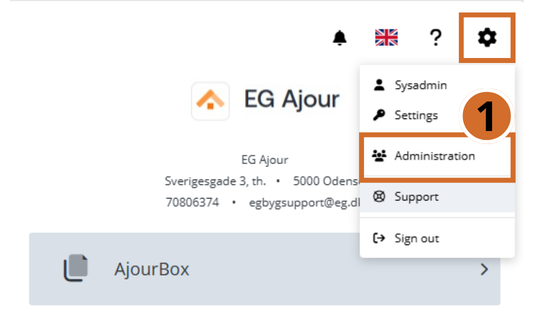
Step 1: Open the Administration module by clicking the gear symbol and selecting “Administration” in the drop-down menu.
Step 2: Click the user whose permissions you want to view.

Step 3: Click “Permissions” to open the user permissions panel.
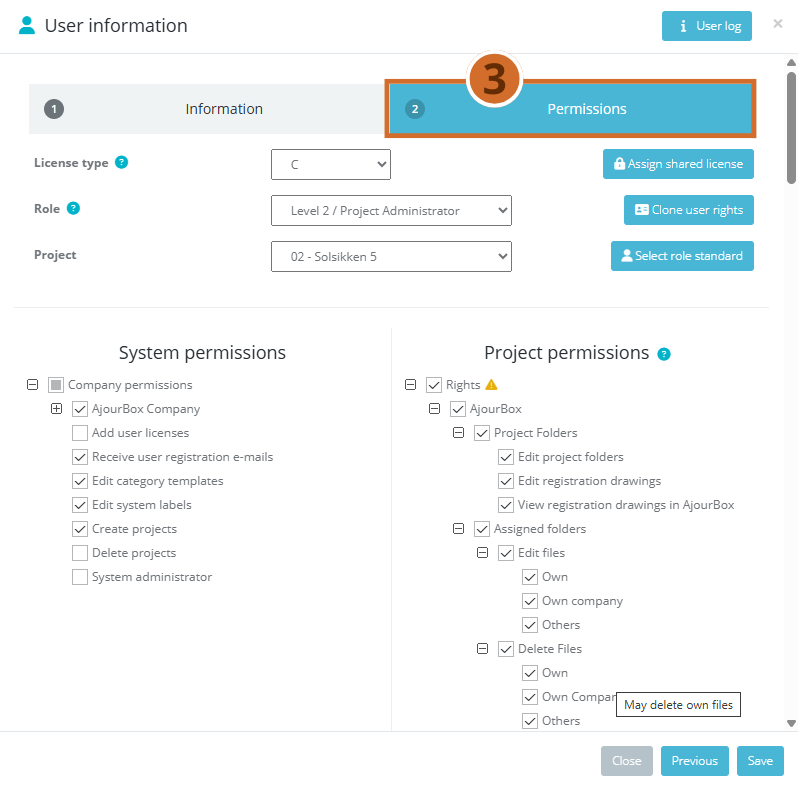
Types of permission checkboxes:
Step 4: The permission and all underlying permissions are selected.
Step 5: The permission is not selected, but some underlying permissions are selected.
Step 6: The permission is not selected.
Tip:
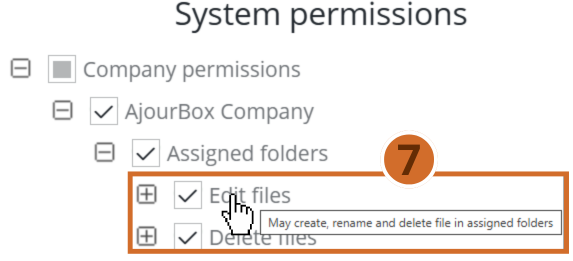
Step 7: Hover the mouse over a permission to get an explanation of that specific permission.
Roles #
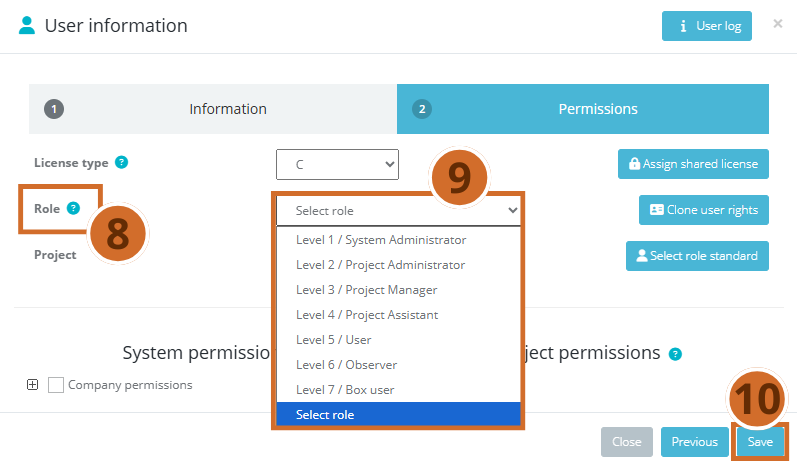
Step 8: A user role is a predefined set of permissions assigned to each user. You can read more about 2 user roles here .
Step 9: To assign a role to a user, simply select the relevant role from the drop-down list.
Step 10: Finish by clicking the “Save” button.
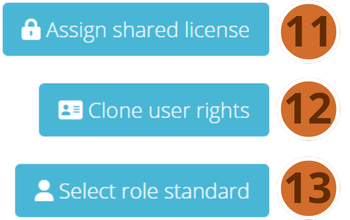
Step 11: “Assign shared license” Allows you to attach a license (A/B) from another EG Ajour customer’s system. This means that a user from an external company can bring their own license and
use it on your system at no extra cost to either the external company or you. See our guide on sharing licenses
Step 12: “Clone user rights” Allows you to clone sets of permissions from another existing user. Find the user whose permissions you want to clone in the list, and click “Save”.
Step 13: “Select role standard” Assigns the user the default set of permissions for the selected role.
Tip: If you have changed the permission set for a role and want to reset it to the predefined default, simply click “Select role standard” again.