
Context #
This guide covers license sharing in EG Ajour, which allows users with an existing A or B license to share that license with another Ajour system. The purpose is to avoid users having to buy extra licenses when they already pay for licenses through their own system. By sharing, a license is “saved”.
There are two solutions depending on the situation. Both are described in this guide.
Relevance #
This guide is relevant when a user with an active A or B license in one Ajour system needs access to another Ajour system without acquiring a separate license. It is typically relevant for subcontractors and collaboration partners who work across organizations.
Anchor system and recipient system #
Before you follow the guide, it is important to understand two terms:
Anchor system is the Ajour system that owns and pays for the license. This system’s URL is used when sharing.
Recipient system is the Ajour system that the license is to be shared with. A system can be both an anchor system and a recipient system in different contexts.
Prerequisites and requirements #
- An active A or B user license in an existing Ajour system (the anchor system)
- The URL of the anchor system (e.g. https://[anchorsystem].ajoursystem.net3 )
- The URL of the recipient system the license is to be shared with
- Knowledge of which solution is relevant (see section Choice of solution)
Important: The URL of the anchor system must include https:// in front of the system name.
Choice of solution #
There are two solutions for sharing a license. The choice depends on whether the user has already been created on the recipient system:
| Situation | Solution |
| The user has not already been created on the recipient system | Solution 1 – The user handles the sharing themselves |
| The user has already been created on the recipient system | Solution 2 – EG Ajour support handles the sharing |
3. http://ajoursystem.net
Remark: If a user tries to share a license via Solution 1 but has already been created on the recipient system, the user will see an error message. In that case, use Solution 2.
Solution 1 – The user handles the sharing themselves #
This solution applies when the user has not already been created on the recipient system.
Prerequisites #
- The user has not already been created on the recipient system
- The user has the URL of the recipient system
- The user has their login details for the anchor system (e-mail and password)
Step by step #
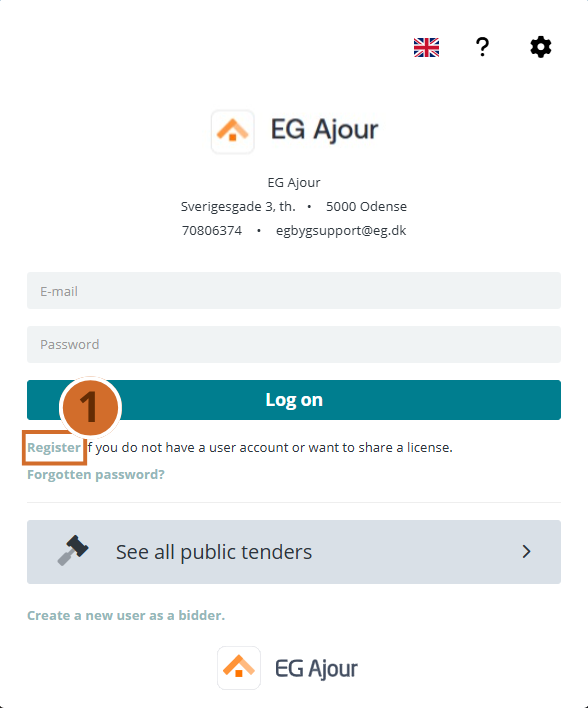
Step 1 – Open the registration link
Go to the URL of the recipient system. On the login page, you will find the text “Register if you do not have a user account or want to share a license.” Click the Register link.
Tip: The link is located directly below the “Log on” button on the login page.
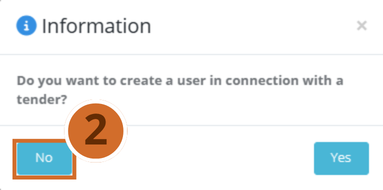
Step 2 – Confirm that the registration is not related to a tender
An information dialog appears with the question: “Do you want to create a user in connection with a tender?”
Click No to continue with license sharing.
Remark: If the registration is related to a tender, click “Yes” and follow the tender registration process instead.
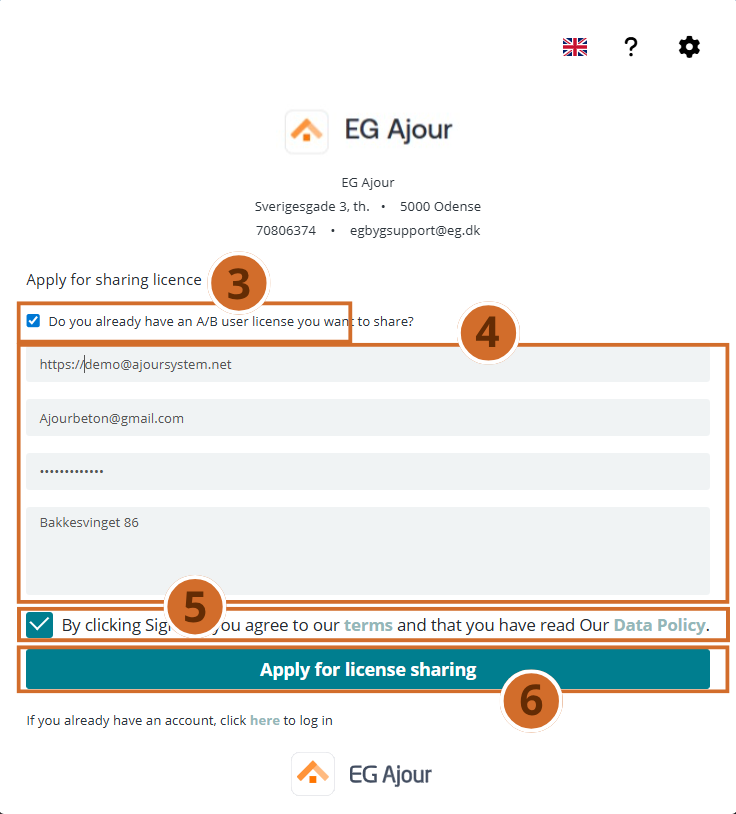
Step 3 – Select license sharing
The registration form titled “Apply for registration” is now displayed. Select the checkbox “Do you already have an A/B user license you want to share?” at the top of the form.
The form changes automatically. The normal registration fields (name, company, etc.) are replaced by fields for your anchor system details.
Step 4 – Fill in the license sharing form
The form “Apply for license sharing” is now displayed. Fill in the following fields:
- Anchor system URL – Enter the full URL of your own Ajour system, e.g. https:// 4 [yoursystem].ajoursystem.net . In the example shown, the anchor system is called demo.ajoursystem.net
- Email (at anchor system) – Enter the e-mail address you use to log in to the anchor system
- Password (at anchor system) – Enter your password for the anchor system
4. http://ajoursystem.net
- Specify the project you want access to or the project manager – Describe which project or who is responsible, so the administrator can easily assign the correct permissions
Important: The URL must start with https://
Step 5 – Accept the terms and submit
Select the checkbox to accept the terms and data policy.
Step 6 – Apply for license sharing.
Then click the “Apply for license sharing” button.
The system automatically contacts the anchor system and retrieves the necessary license information. A green confirmation message informs you that your application has been received.
Remark: The system administrator on the recipient system receives a notification that you are bringing your own license, so they do not need to assign a separate license to you. When the administrator approves your application, you will receive a welcome e-mail with an activation link so you can create a password.
Solution 2 – EG Ajour support handles the sharing #
This solution is used when the user has already been created on the recipient system, and Solution 1 is therefore not possible. The sharing is carried out by EG Ajour support.
Step 1 – Obtain acceptance from the recipient system’s administrator and send it to EG Ajour support #
Before the sharing can be carried out, EG Ajour support requires written acceptance from the recipient system’s system administrator. You can forward the e-mail template below to the relevant 5 system administrator and ask for acceptance. Send the acceptance to egbygsupport@eg.dk ATT: EG Ajour.
E-mail template:
Hi [name of system administrator]
The recipient system’s system administrator is asked to reply to this e-mail with acceptance that EG Ajour support may share the license(s) with the system.
The following information is provided in connection with the sharing:
- Anchor system (company/organization that holds the license): https://[anchorsystem].ajoursystem.net6
- Recipient system (company/organization the license is shared with): https://[recipientsystem].ajoursystem.net
- E-mail address(es) of the user(s) who hold the license: [user’s e-mail]
- It is a prerequisite that the user(s) have been created on the recipient system before the sharing can be carried out.
- It is a prerequisite that the user(s) have been created on the anchor system with an A or B license.
Kind regards
Step 2 – Carry out the sharing #
When EG Ajour support has received the acceptance, the sharing is carried out.
5. mailto:egbygsupport@eg.dk 6. http://ajoursystem.net 7. http://ajoursystem.net
Next steps #
- Check in User administration that the license appears correctly on the user.
- Assign the user the necessary project permissions