
Context #
This guide shows a flow in the administration module under the Companies tab. The flow covers the process from opening the company list, through editing a single company, to merging it with another existing company in the system. The process ends with a confirmation dialog and an updated company list.
Relevance #
This guide is relevant when you find duplicate companies in the system, or when you want to consolidate two company records into one. The function ensures that all references to the merged company are updated automatically across the system’s modules.
Prerequisites and requirements #
- You are logged in to the system with an account that has administrator permissions
- You have access to the Administration menu (the gear icon at the top right)
- You know the names of the two companies you want to merge
- You have decided which company is to be kept (the target company) and which is to be deleted (the source company)
- Warning: A merge cannot be undone. Make sure you have clarified the consequences before you continue.
Guide (step by step) #
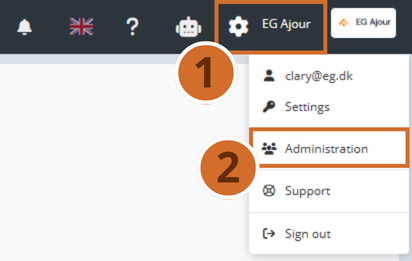
Step 1 – Open the administration menu Click the gear icon at the top right of the navigation bar. A dropdown menu appears.
Step 2 – Go to Administration Click Administration in the dropdown menu. You are taken to the administration module.
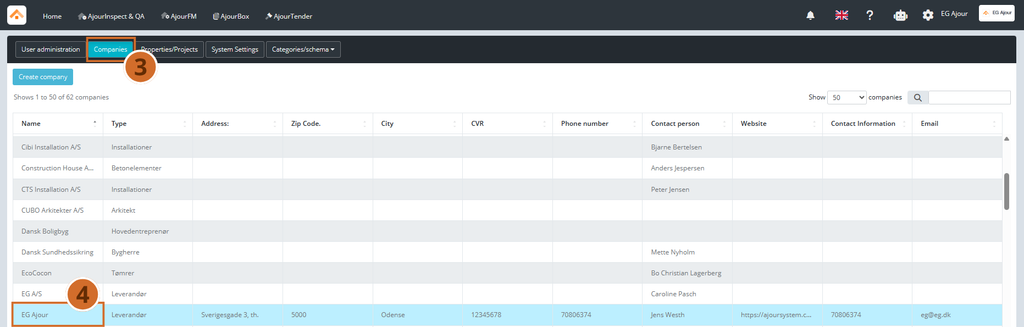
Step 3 – Navigate to Companies Click the Companies tab in the top tab bar. A list of all registered companies appears.
Step 4 – Open the company to be merged (the source company) Click the row of the company you want to merge with another. The Edit company dialog opens.
Tip: The source company is the one that will be replaced and removed from the system after the merge.
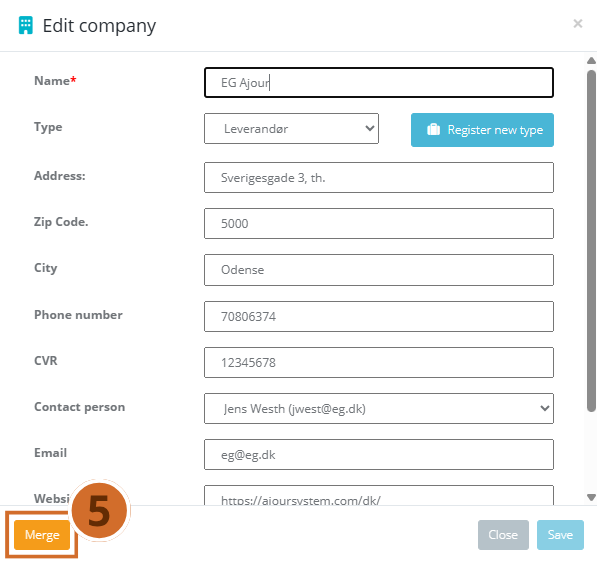
Step 5 – Click the Merge button Click the Merge button at the bottom left of the edit dialog. A new information dialog opens.
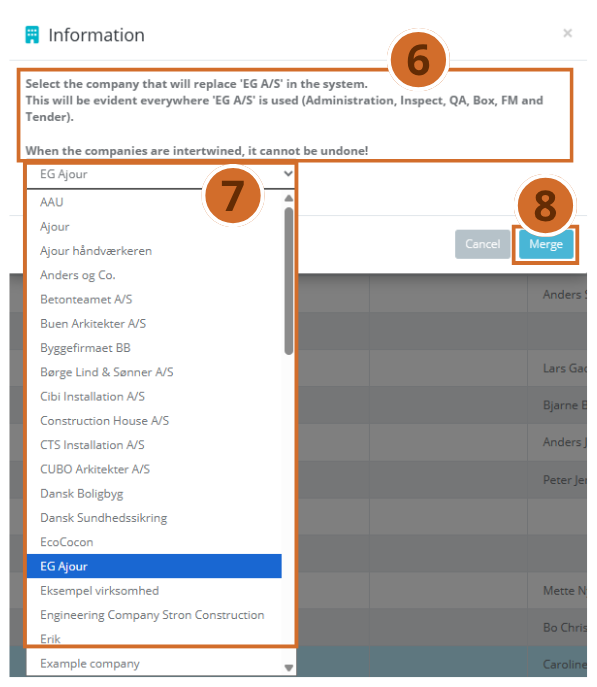
Step 6 – Read the warning Read the information text in the dialog carefully. It informs you that the merge will take effect everywhere the source company is used in the system, and that the action cannot be undone.
Step 7 – Select the target company Click the dropdown list in the dialog and select the company that is to replace the source company (the target company). All companies except the source company itself are available in the list.
Tip: The target company is the one that is kept in the system. All existing references to the source company are transferred to this company.
Step 8 – Click the “Merge” button to continue Click the “Merge” button. A new confirmation dialog opens.
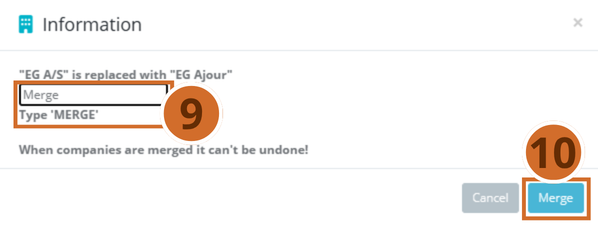
Step 9 – Confirm the merge The confirmation dialog shows a summary: “[Source company] will be replaced with [Target company]”. Enter MERGE in the text field to confirm that you understand the action.
Important: The Merge button remains inactive until you have entered the confirmation text correctly. It makes no difference whether you use upper or lower case.
Step 10 – Complete the merge Click the “Merge” button. The system performs the merge, and you are returned to the company list.
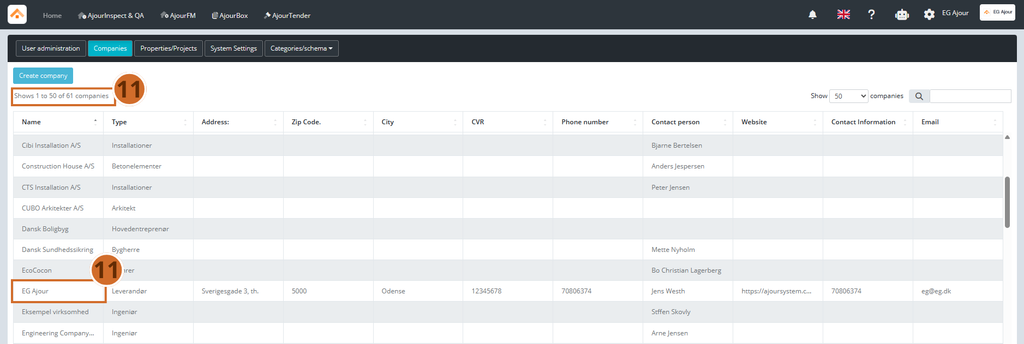
Step 11 – Verify the result Check that the source company no longer appears in the list and that the number of companies has been reduced by one.
Next steps #
- Check references: Review the relevant modules (for example projects or registrations) to make sure all references now correctly point to the target company.
- Update company data: Open the target company and check that master data such as address, CVR and contact person are correct and up to date.
- Clean up further duplicates: Repeat the process if there are more companies in the list that should be merged.