
This article describes how to archive, activate or delete a project.
Action:
Archive project: #
Step 1. – Click the “Gear icon“, which is always located in the top right corner.
Step 2. – Select “Administration”
The gear icon is always visible in the top navigation bar, regardless of which page you are on.
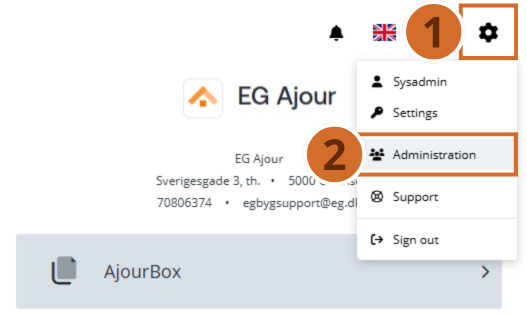
Step 3. – Select “Projects”
Step 4. – You can select the checkbox in the status “Active/Inactive”, so you only see the status you need. If, as in this example, you need to archive a project, you only need to see “Active” projects.
Step 5. – You can search for the desired project if it is not easy to find in the overview. Enter the first few letters, and you will be shown all projects containing those letters.
Step 6. – Select the project you want to archive.
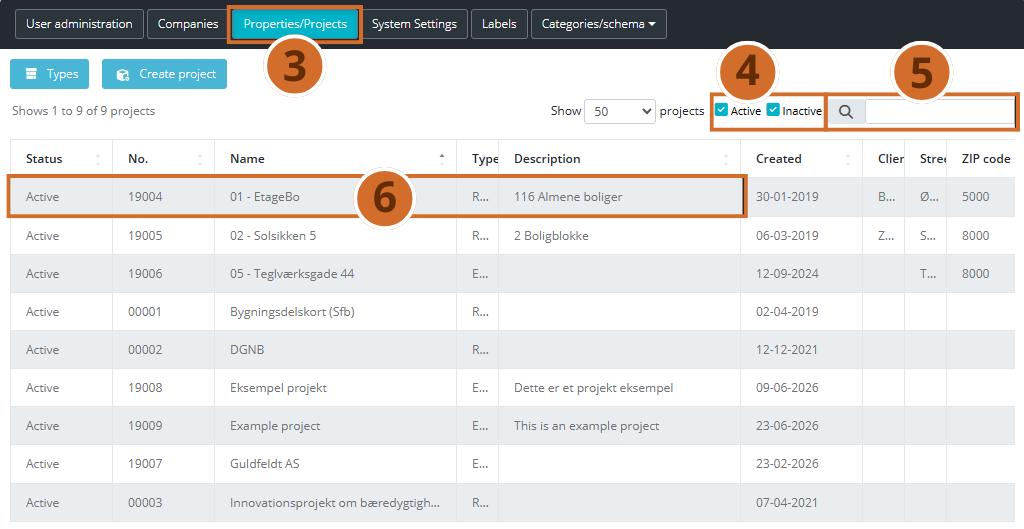
Step 7. – Clear the checkbox next to “Active”
Step 8. – Click the “Save” button to finish
Activate an archived project: #
Danish title: Aktiver et arkiveret projekt: (ref. 1.4.2)
Step 1. – Click the “Gear icon“, which is always located in the top right corner.
Step 2. – Select “Administration”
The gear icon is always visible in the top navigation bar, regardless of which page you are on.
Step 3. – Select “Projects”
Step 4. – You can select the checkbox in the status “Active/Inactive”, so you only see the status you need. If, as in this example, you need to archive a project, you only need to see “Active” projects.
Step 5. – You can search for the desired project if it is not easy to find in the overview. Enter the first few letters, and you will be shown all projects containing those letters.
Step 6. – Select the project you want to activate.
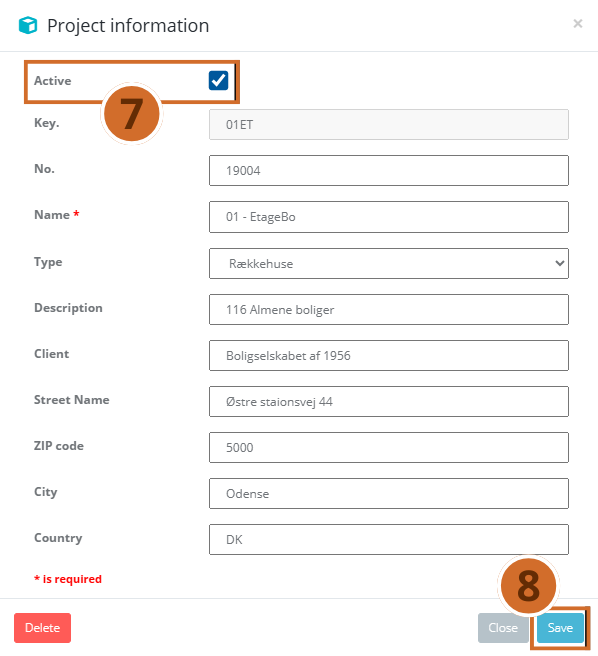
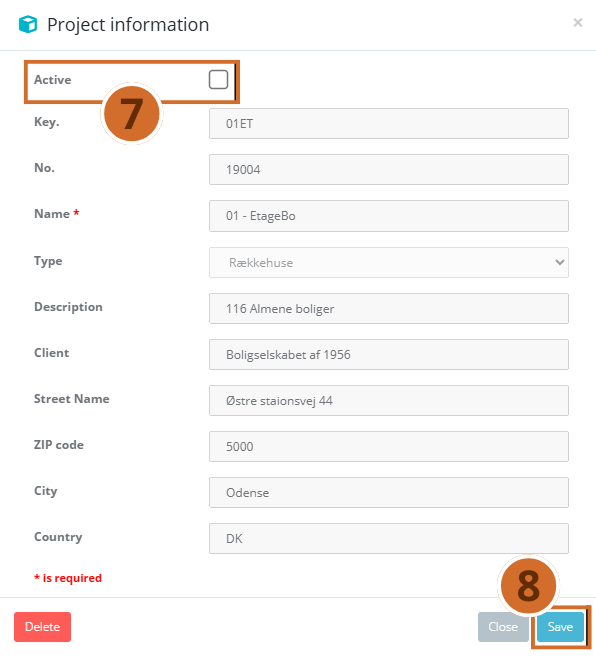
Step 7. – Select the checkbox next to “Active”
Step 8. – Click the “Save” button to finish
Meaning: #
Archive project means that: #
- The project is removed from the overview
- The project is removed from the modules
- The project cannot be found in search, neither in the app nor on the web
- The project will no longer be synchronized to the app
- No new data can be created on the project
- Data on the project can no longer be found in search
- The project is not deleted
- The project can be restored / reactivated
Delete project: #
Step 1. – Click the “Gear icon“, which is always located in the top right corner.
Step 2. – Select “Administration”
Step 3. – Select “Projects”
Step 4. – You can select the checkbox in the status “Active/Inactive”, so you only see the status you need. If, as in this example, you need to archive a project, you only need to see “Active” projects.
Step 5. – You can search for the desired project if it is not easy to find in the overview. Enter the first few letters, and you will be shown all projects containing those letters.
Step 6. – Select the project you want to delete.
Step 7. – Click the “Delete” button
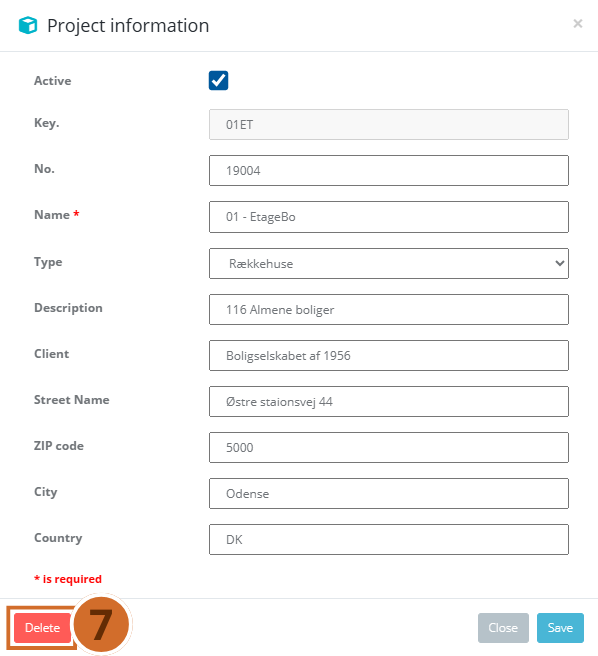
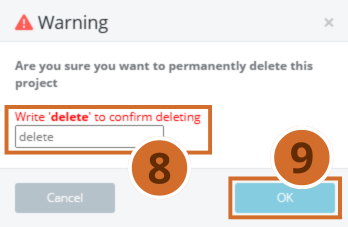
Step 8. – Type ‘delete‘ to confirm the deletion
Step 9. – Finish by clicking the “OK” button to confirm the deletion – NOTE!! The deletion is permanent, and the project and its data cannot be restored by the customer. If a project is deleted by mistake, EG Ajour support can help restore it, but this work is only carried out against payment for the developers’ time spent.
Meaning: #
Delete project means that:
- The project and its data are permanently deleted
- The project and its data cannot be restored / recreated
Should a project be deleted by mistake, EG Ajour support can help restore it, but this work is only carried out against payment for the developers’ time spent.
Requirements: #
The function deactivate project requires the project permission: General → Project → Archive
The function delete project requires the system permission: Delete projects