
Context #
This guide shows the User information dialog box in EG Ajour – specifically the Permissions tab. Here you configure the user’s role, license type and permissions, divided into two columns: System permissions (permissions at system level) and Project permissions (permissions per project). Permissions are presented in a hierarchical tree with checkboxes. The system supports eight roles across levels 1–8. The role standards are predefined standard templates and cannot be renamed by users.
Note that the role does not by itself grant permissions or access. Before the permissions are assigned, you must, as administrator, click the button “Select role standard”.
Relevance #
You need this guide when you must:
- Create a new user and assign the correct role
- Adjust an existing user’s access to modules and functions
- Apply a standard template for a given role
- Copy permissions from the role standard to a user
Prerequisites and requirements #
Make sure of the following before you start:
- You are logged in to EG Ajour with either Level 1 / System Administrator or Level 2 / Project Administrator
- You have access to the user administration module
- The user you want to set up has already been created in the system (or you are in the process of creating it)
- You know the desired role for the user – see the role table below
- You have clarified whether the user should have an A, B or C license
Overview of user roles #
| Role | Modules | Description |
| Level 1 / System Administrator | AjourBox, AjourFM, AjourInspect+QA, AjourTender, Administration module | Full access to all functions and projects. Creates/deletes projects and administers the entire platform. The only role with system administration. |
| Level 2 / Project Administrator | AjourBox, AjourFM, AjourInspect+QA, AjourTender, Administration module | Manages projects and administers users on own projects. No system permissions. |
| Level 3 / Project Manager | AjourBox, AjourFM, AjourInspect+QA | Daily use of projects. Access to project folders and registration drawings. Can edit own and the company’s data, but cannot delete others’ files or BE-cards. |
| Level 4 / Project Assistant | AjourBox, AjourFM, AjourInspect+QA | Keeps files up to date. Cannot publish files or delete others’ files. |
| Level 5 / User | AjourBox, AjourFM, AjourInspect+QA | Can edit, view and comment on own and assigned registrations. Uploads and views files in assigned and public folders. Creates BE-cards. |
| Level 6 / Observer | AjourBox, AjourFM, AjourInspect+QA | Primarily read access. Sees all registrations and BE-cards, but cannot delete anything. |
| Level 7 / Box user | AjourBox | Access to AjourBox only. Uploads and views files in assigned and public folders. |
| Level 8 / Tender user | AjourTender | Can only participate in a tender. |
Note: If a user has the role Level 8 / Tender user, the user can only access the AjourTender module and will be blocked from the other modules (both on web and app) – regardless of whether the user has been assigned project permissions for one or more projects.
Guide (step by step) #
Open the User information dialog box #
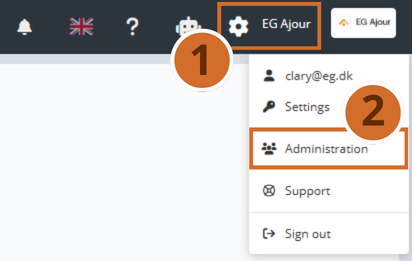
Step 1 – Open the administration menu by clicking the “gear icon” at the top right of the navigation bar. A drop-down menu appears.
Step 2 – Click “User administration” in the drop-down menu.
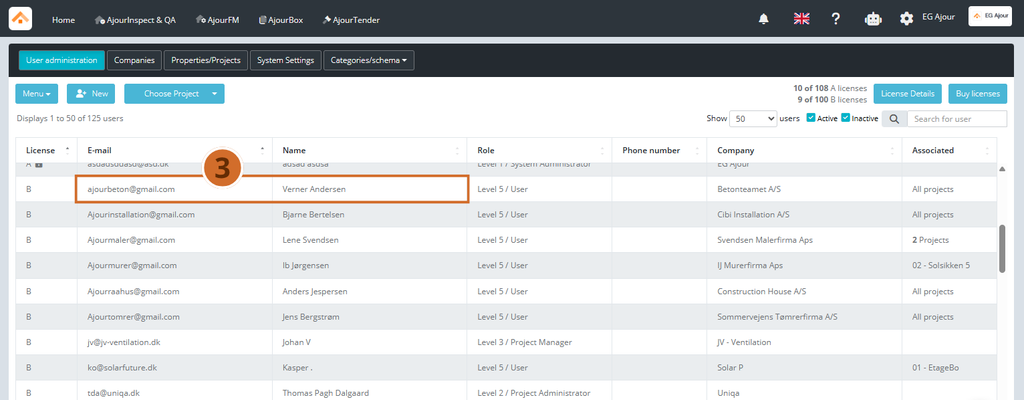
Step 3 – Find the user you want to edit, and click the user’s name or the edit icon.
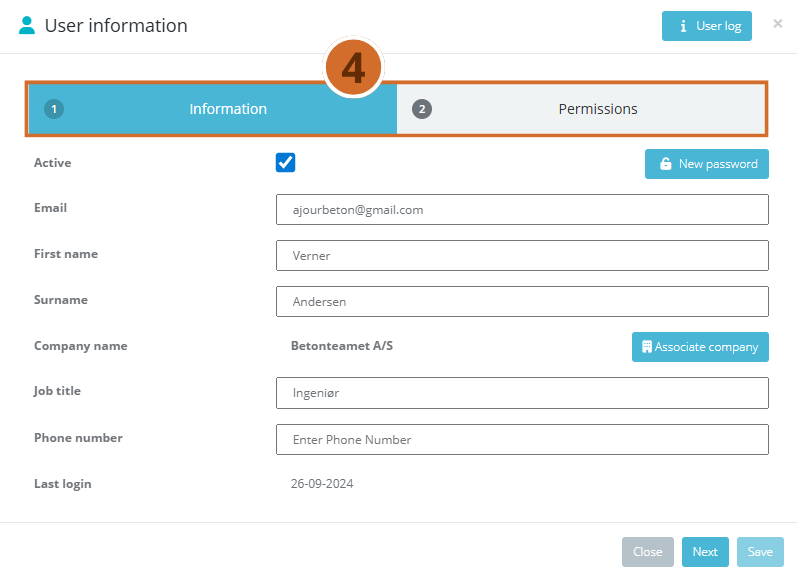
Step 4 – The User information dialog box opens with two tabs: Information and Permissions.
Go to the Permissions tab #
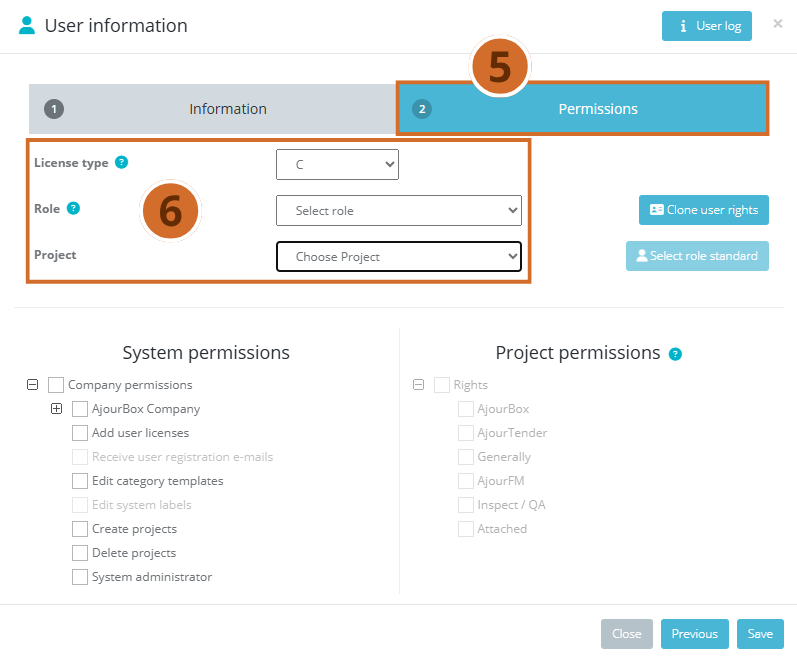
Step 5 – Click the Permissions tab (marked with the number 2) at the top of the dialog box.
Step 6 – The page is updated and shows three configuration fields at the top: License type, Role and Project.
Select license type #
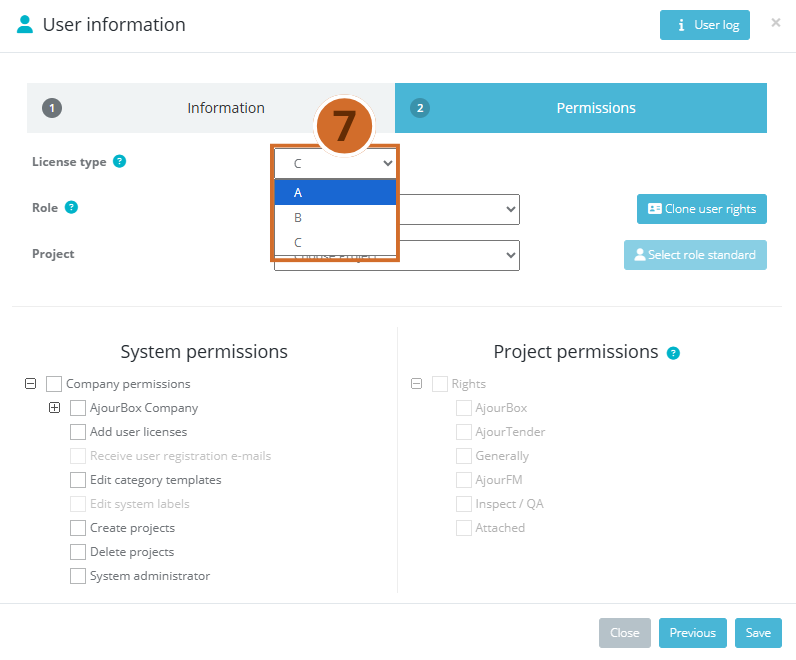
Step 7 – Click the drop-down list at License type and select the relevant license type (A, B or C).
Assign a role #
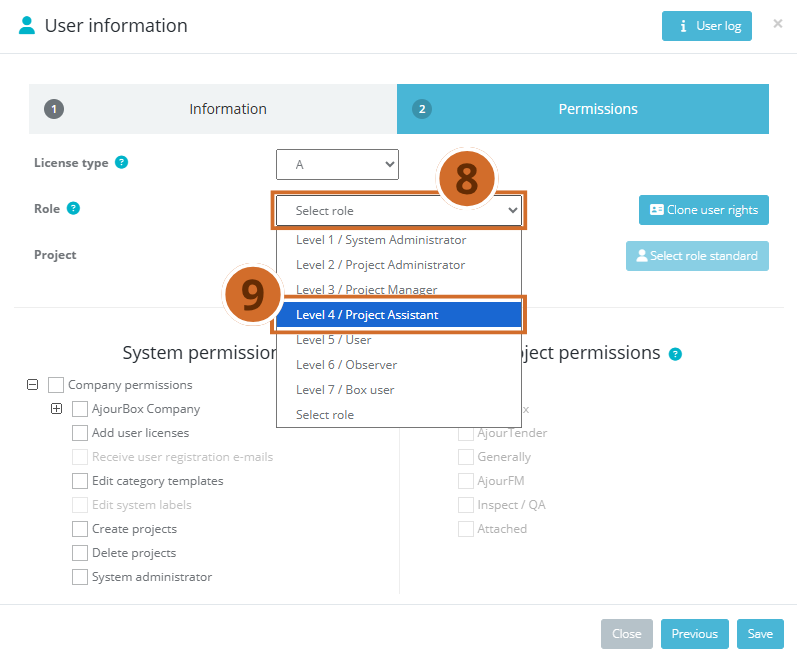
Step 8 – Click the drop-down list at Role.
Step 9 – Select the desired role, e.g. Level 4 / Project Assistant.
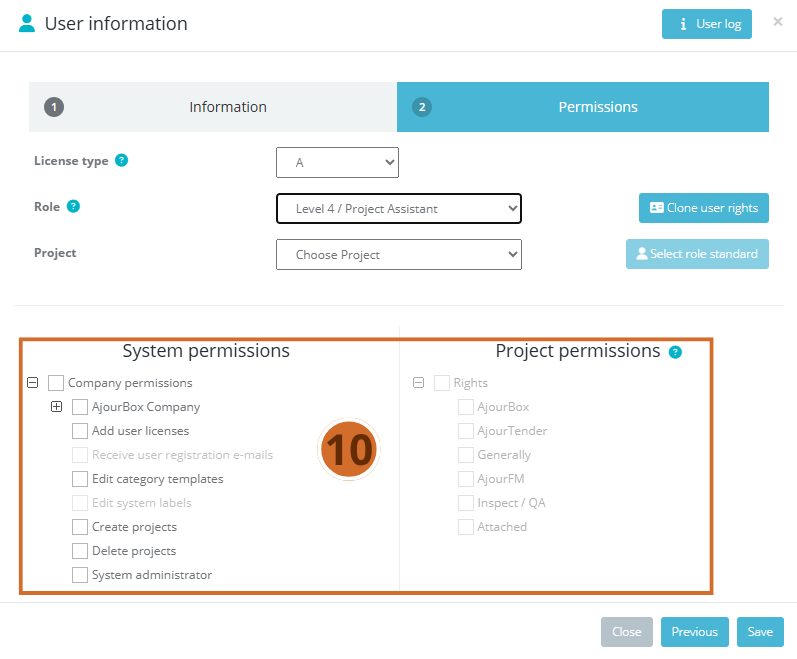
Step 10 – The permission trees are not updated automatically — see steps 13-19.
Important: Selecting a role in the drop-down list does not automatically change the checkboxes. You must actively apply a role standard or adjust manually.
Select project #
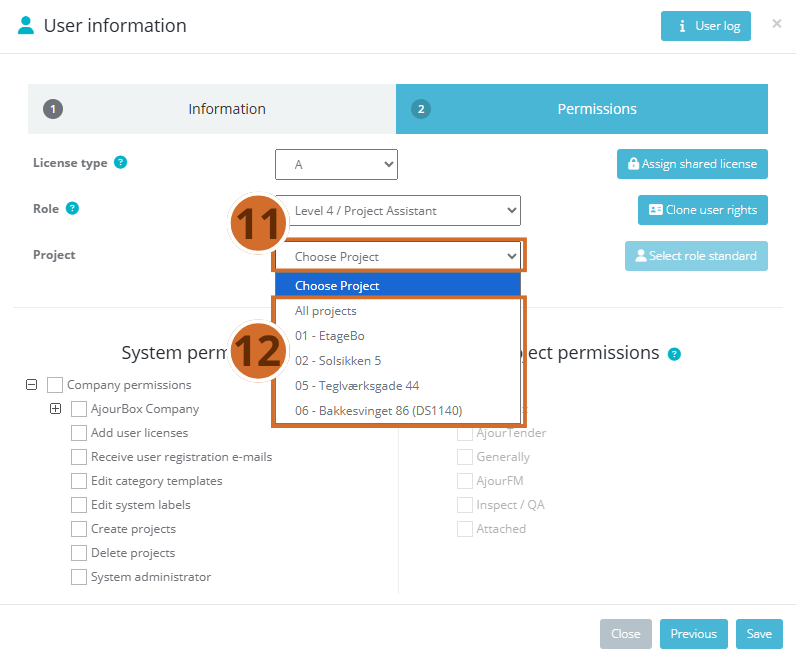
Step 11 – Click the drop-down list at Project.
Step 12 – Select All projects if the user should have access across projects, or select a specific project.
Note: Permissions can be set per project. Save the current project and then switch to another one for separate settings.
Apply the role standard #
Step 13 – Click the Select role standard button, and the user is assigned the selected role on the selected project.
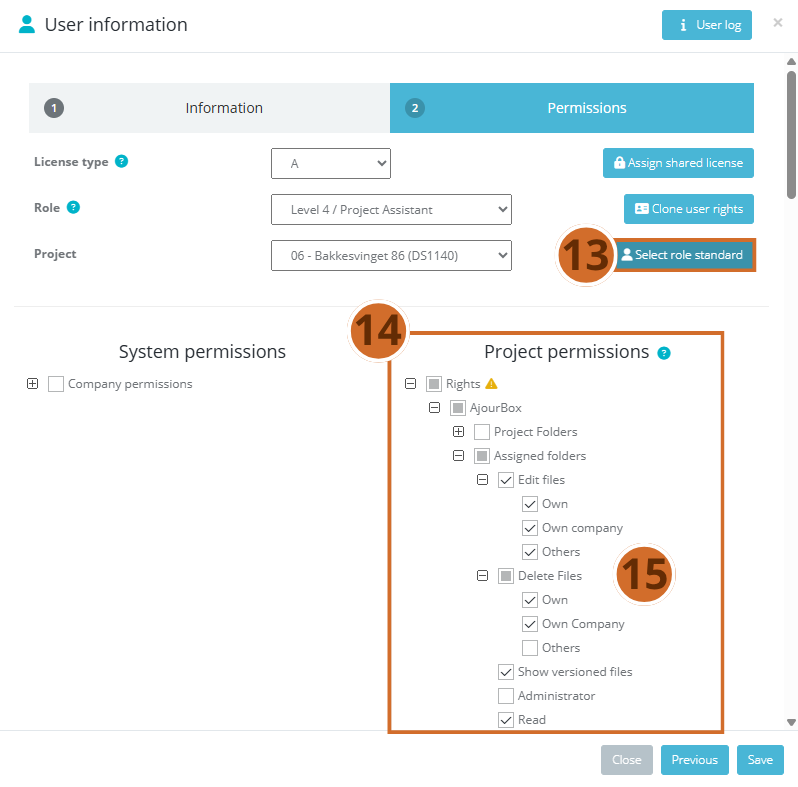
Step 14 – The system automatically fills in all checkboxes according to the standard configuration for the selected role.
Step 15 – Review the pre-filled permissions in the tree to make sure they match the user’s needs.
Tip: The Clone user rights button lets you copy an existing user’s permissions directly — useful when a new user should have the same access as a colleague.
Adjust permissions manually (optional) #
Step 16 – Scroll through the permission tree under Project permissions.
Step 17 – Click [+] to expand a category, e.g. AjourBox > Assigned folders.
Step 18 – Select or clear the checkmark at the specific permissions as needed — e.g. Edit files > Own, Own company or Others.
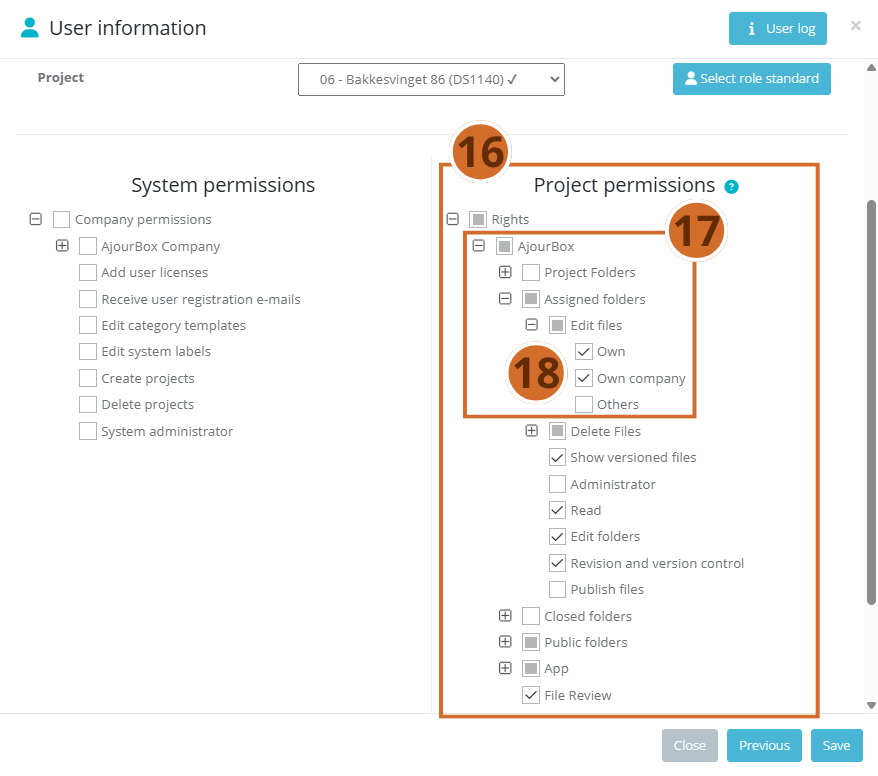
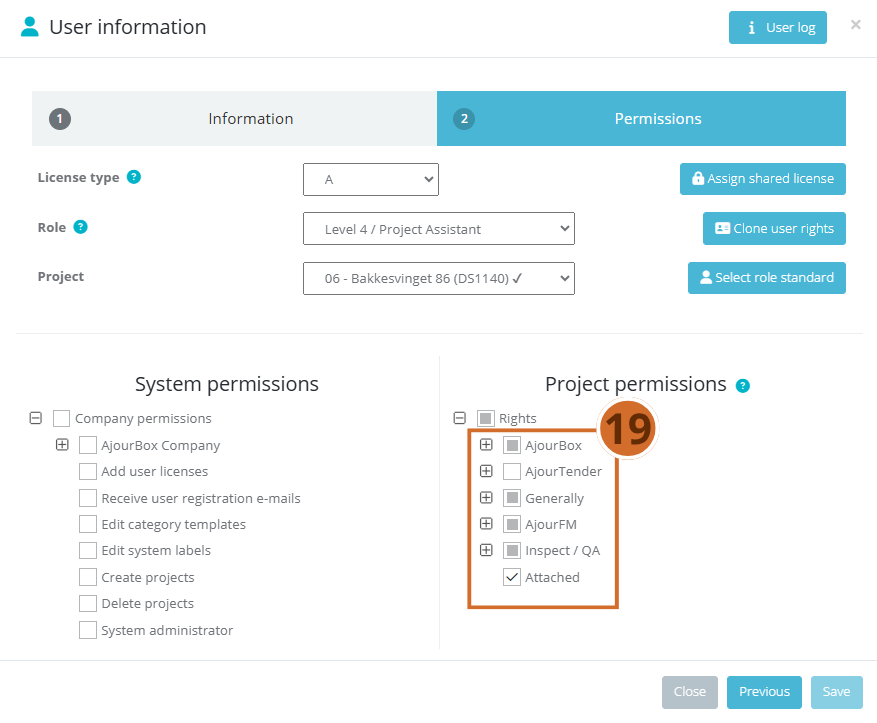
Step 19 – Repeat for all relevant modules: AjourBox, AjourTender, General, AjourFM and Inspect / QA.
Warning: Avoid giving users broader access than necessary. Permissions such as Delete files > Others or Edit others’ data should only be granted when there is a documented need.
Save permissions #
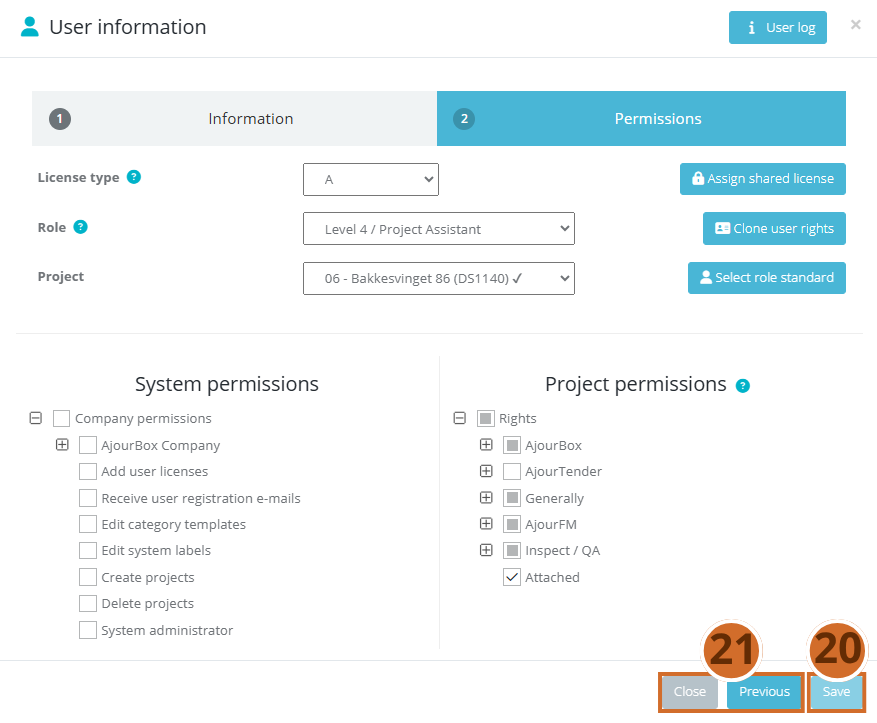
Step 20 – Click the Save button (green button at the bottom right).
Step 21 – The system saves the permissions. Click Previous to adjust further, or Close to leave without saving.
Next steps #
- Fill in the user’s Information: Go to tab 1 and fill in name, e-mail and company affiliation before you save finally.
- Assign the user to specific projects: Go to project administration and add the user to the relevant projects with the assigned role.