
CONTEXT #
This guide describes how to create a new project in EG Ajour via Administration on the web. The function is found under the Projects tab in the administration module and lets you create a project with basic information and associate relevant groups with the project.
RELEVANCE #
You need this guide when a new construction project is to be set up in the system – e.g. when starting a new project, a new building project or a new department that needs its own project space in Ajour. Without a created project, no data can be registered, no users can be associated, and modules such as AjourInspect & QA, AjourBox, AjourFM and AjourTender cannot be used on that project.
PREREQUISITES AND REQUIREMENTS #
- You must have a user account with administrator permissions (e.g. Level 1 / System Administrator)
- You must have the system permission Create projects (included by default in the role Level 1 / System Administrator)
- You must have access to the Administration panel in EG Ajour
- You should know which groups (e.g. QA category groups) are to be associated with the project
GUIDE (step by step) #
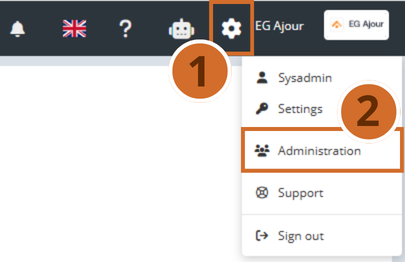
Step 1: Click the gear icon in the top menu to open the settings menu.
Step 2: Select Administration in the dropdown menu that opens.
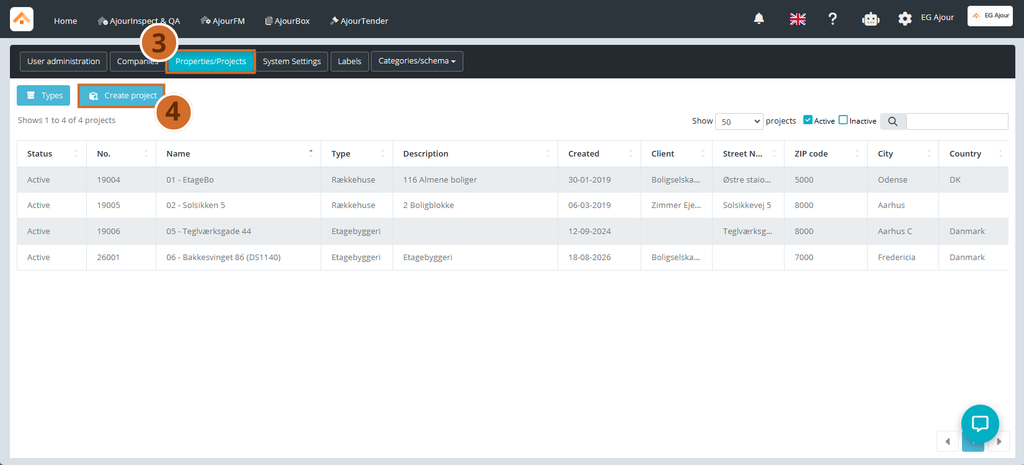
Step 3: Click the Projects tab in the top menu of the administration panel. A list of existing projects is shown here.
Step 4: Click the Create project button. A window titled “Project information” opens with two steps: Information and Groups.
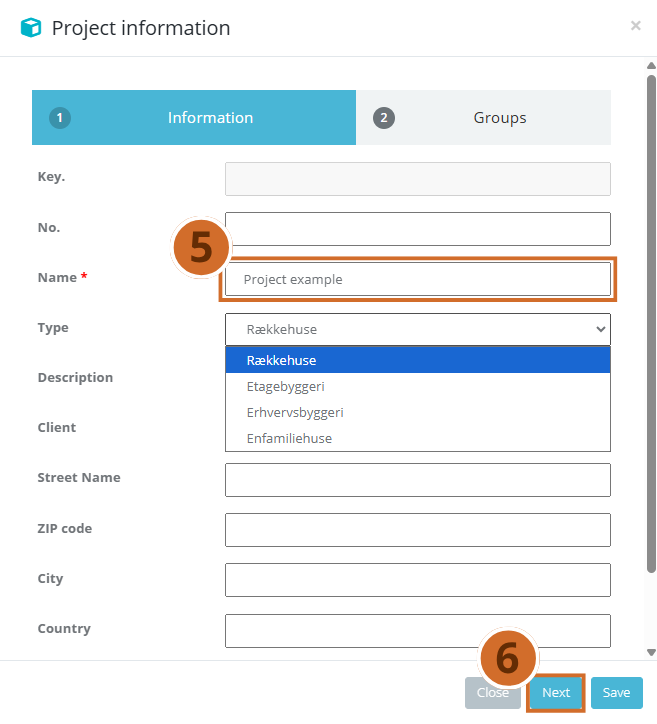
Step 5: Fill in the project details under the Information tab:
- Enter Name (required field, marked with *)
- Optionally select a Type from the dropdown menu
- Fill in optional fields such as No., Description, Client, Street Name, Zip Code, City and Country, if relevant
- Optionally select a BD-board (AjourFM) from the dropdown menu
Please note: Only the Name field is required to create the project. The other fields are optional and have no significance in the rest of the system.
Step 6: Click Next to go on to the group association.
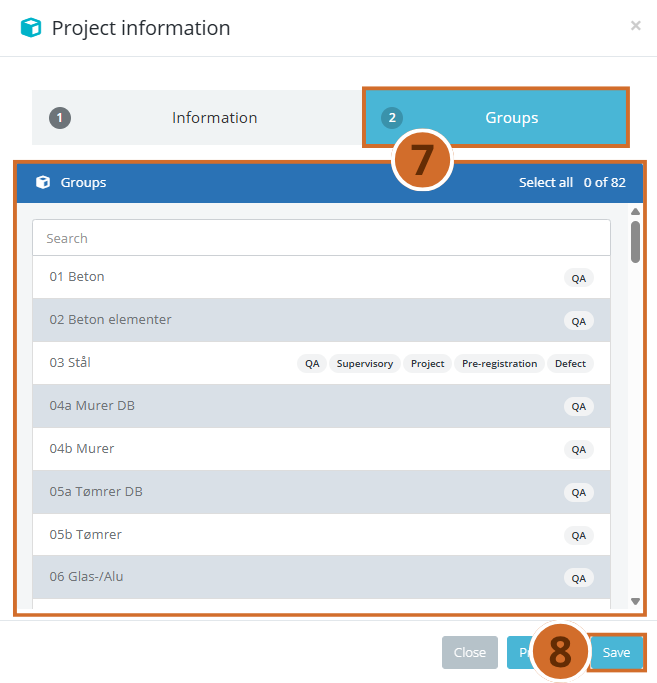
Step 7: Under the Groups tab, a list of available groups (e.g. QA category groups) is shown. Click the group(s) you want to associate with the project. Selected groups are highlighted with a blue background.
Tip: Use the search field at the top of the list to quickly find a specific group. You can also click Select all to associate all groups at once.
Please note: At least one group must be selected for the project.
Step 8: Click Save to complete the creation of the project.
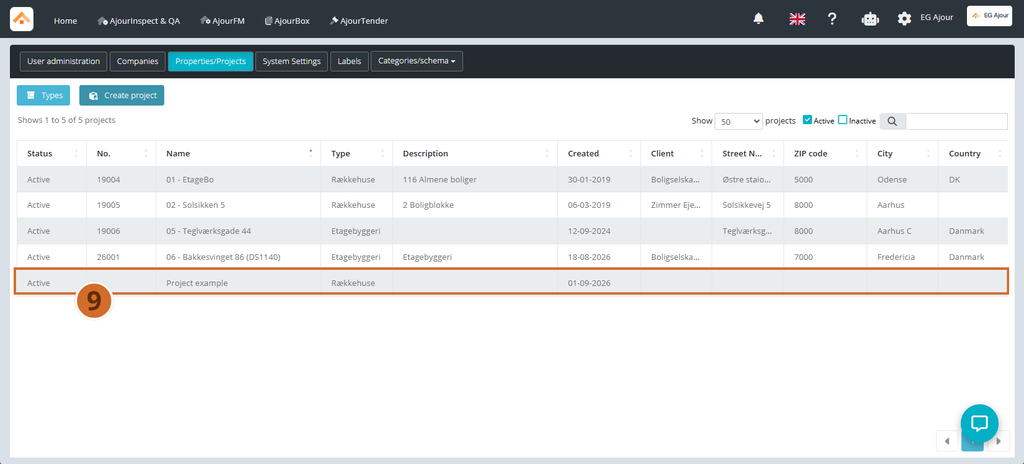
Step 9: The window closes automatically, and the new project is now shown in the project list with the status Active and today’s date under Created.
NEXT STEPS #
- Give users access to the new project under User administration
- Adjust the project’s details by clicking the project name in the list
- Adjust the project’s category groups by clicking “Categories/schema”
- Create a folder structure, upload files and registration drawings in AjourBox
- Go to AjourInspect & QA to start registrations on the new project