
Context #
This guide covers the user administration module in EG Ajour – web-based. The module allows system or project administrators to create and configure new users with associated permissions and licenses. The flow consists of three main parts: navigating to the administration panel, filling in user details and assigning permissions.
Relevance #
You need this guide when:
- A new employee needs access to the system
- An external collaboration partner needs to be created as a user
- An existing user needs to be edited
- A new company needs to be created in connection with creating a user
Prerequisites and requirements #
Before you follow the guide, make sure the following is in place:
- You are logged in to EG Ajour web
- Your account has system or project administrator permissions or equivalent access to user administration
- Free licenses are available – check the license overview before you start
- You know the new user’s full name and e-mail address
- You know which role and company the user is to be associated with
Important: Always check the number of available licenses before creating the user if the user is to have an A or B license.
Guide #
Part 1 – Open the administration module #
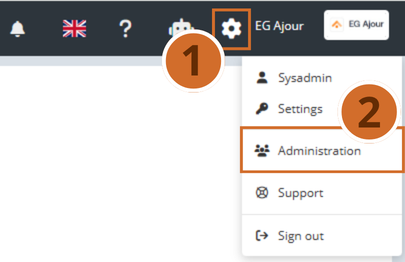
Step 1. Click the gear icon in the top right of the navigation bar. → A dropdown menu appears with options for your profile and system settings.
Step 2. Select Administration in the dropdown menu. → You are taken to the administration panel. The User administration tab is active by default, and the existing user list is displayed.
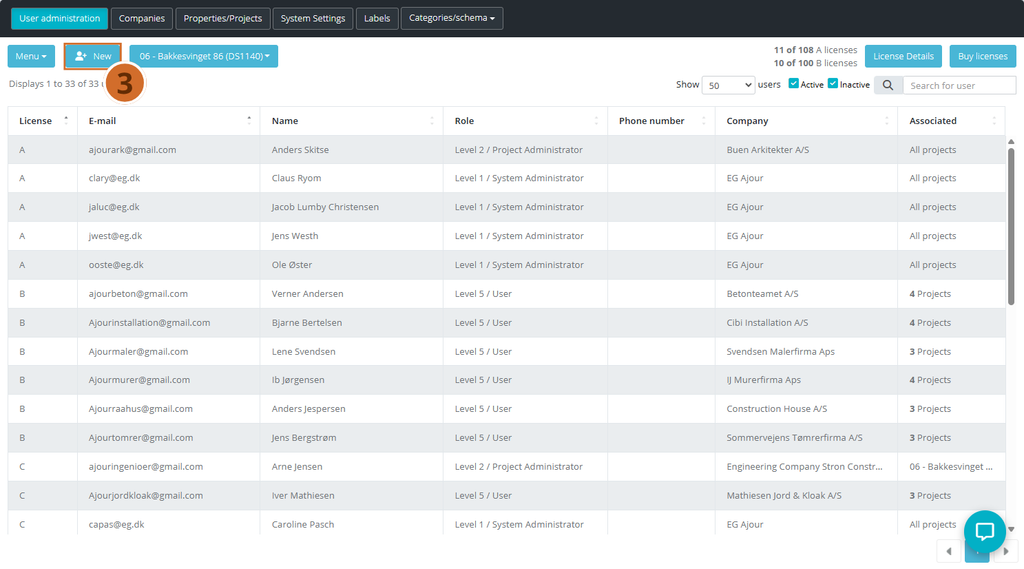
Remark: You can see the number of used and available licenses in the top right of the overview.
Part 2 – Create a new user and fill in details #
Step 3. Click the New button in the top left of the user list. → The User information dialog opens with two tabs: Information and Permissions. You are on the Information tab.
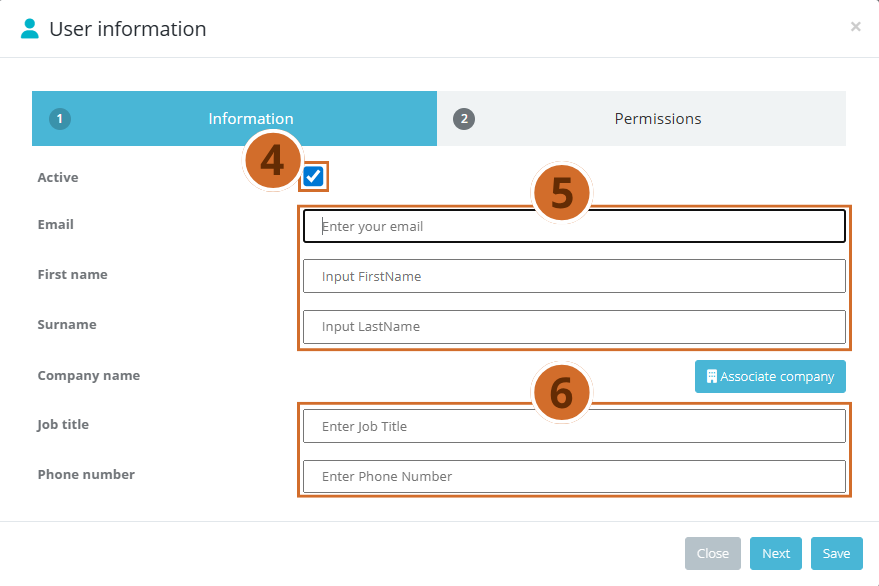
Step 4. Check that the Active field is selected if the user is to be active immediately. → The field is selected by default. Clear the selection if the user is to be activated at a later time.
Step 5. Fill in the required fields: E-mail, First Name and Surname. → The system validates that the e-mail address has the correct format.
Step 6. Optionally, fill in the optional fields Job title and Phone number.
Tip: Job title and phone number can always be added or corrected later by editing the user.
Tip: All fields can be corrected later by editing the user.
Remark: An e-mail can only appear once in the system. If you enter an e-mail that already exists, you will see the message “Username (e-mail) is already created”. Instead, you must search for the existing user in User administration and assign the user permissions to the project.
Part 3 – Associate a company #
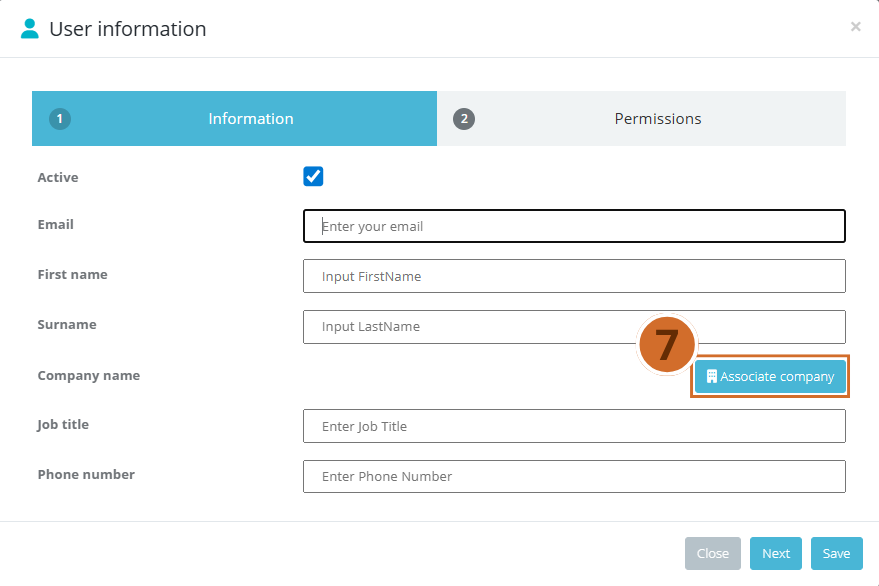
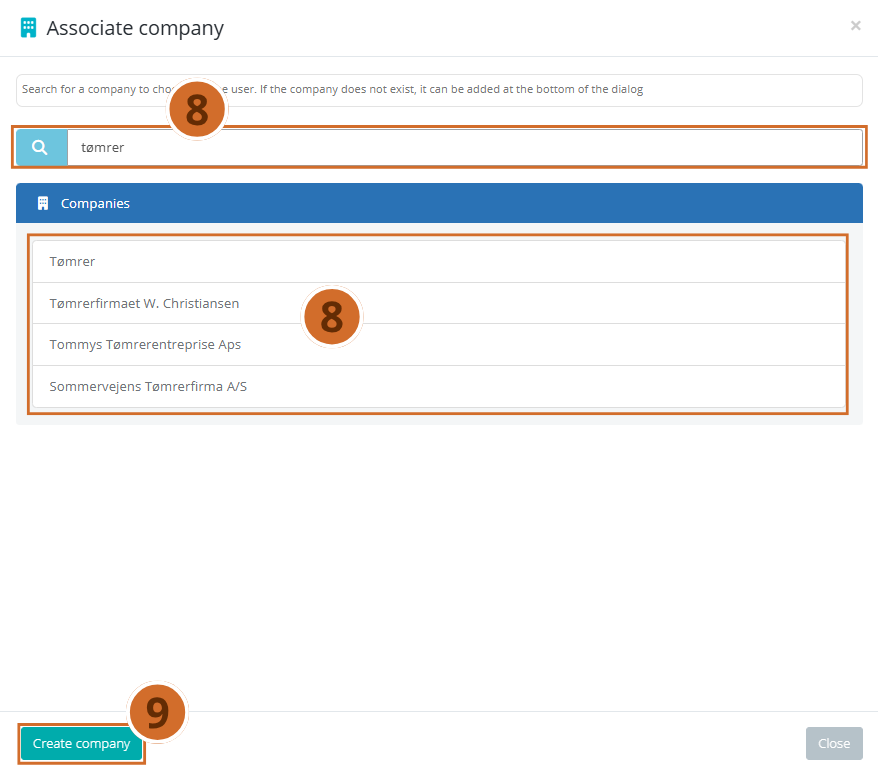
Step 7. Click the Associate company button next to the Company name field. → The Associate company dialog opens with a search function and a list of existing companies.
Step 8. Search for the company by typing in the search field, or select it directly from the list. → The list is filtered dynamically as you type. Click the company to select it.
Important: If the company does not exist in the system, it must be created first. Follow Step 9–10. If the company already exists, skip directly to Step 11.
Step 9. Click Create company at the bottom of the dialog. → A new Create company dialog opens.
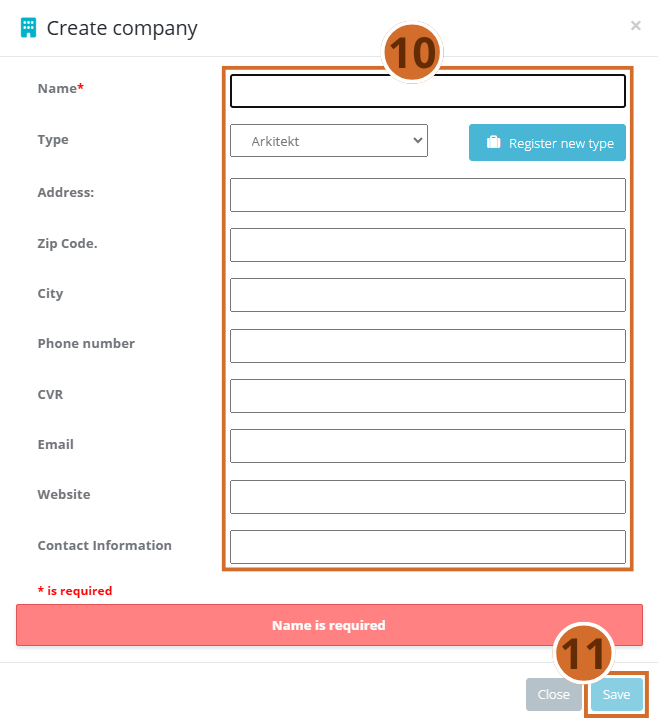
Step 10. Fill in at least the Name field (required). Optionally fill in Type, Address, Zip Code, City, Phone number, CVR, E-mail, Web site and Contact Information.
Step 11. Click Save. → The company is created and you automatically return to the Associate company dialog, where the new company is now shown in the list.
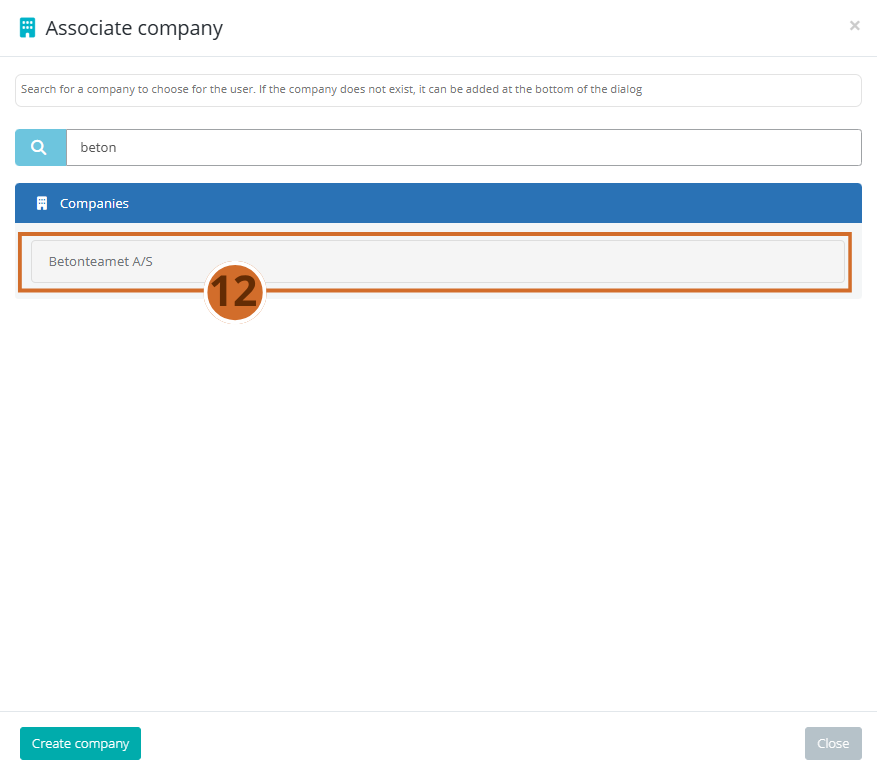
Step 12. Select the desired company from the list and click Close. → The company name is now shown in the Company name field in the User information dialog.
Part 4 – Assign permissions and save #
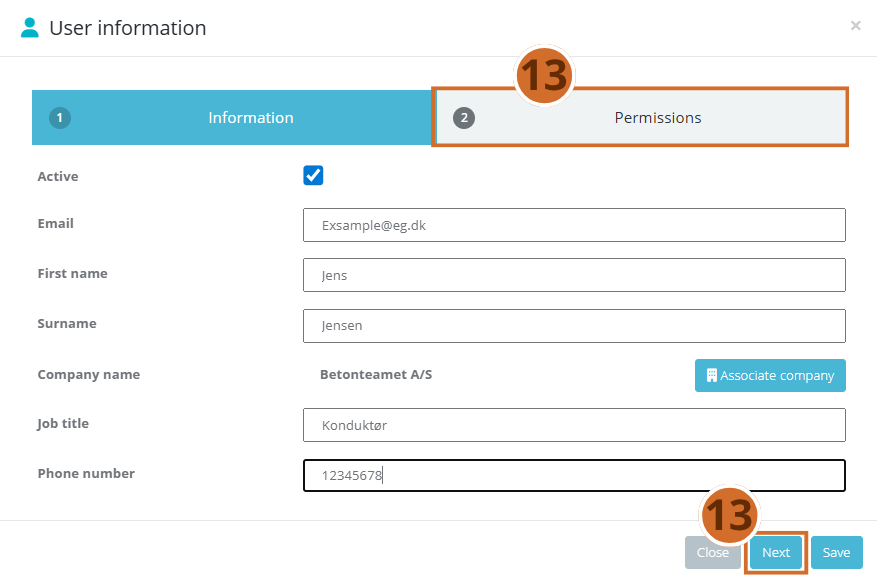
Step 13. Click Next to go on to the Permissions tab, or click the Permissions tab. → The Permissions tab is activated and shows the fields License type, Role and Project as well as two sections: System permissions and Project permissions.
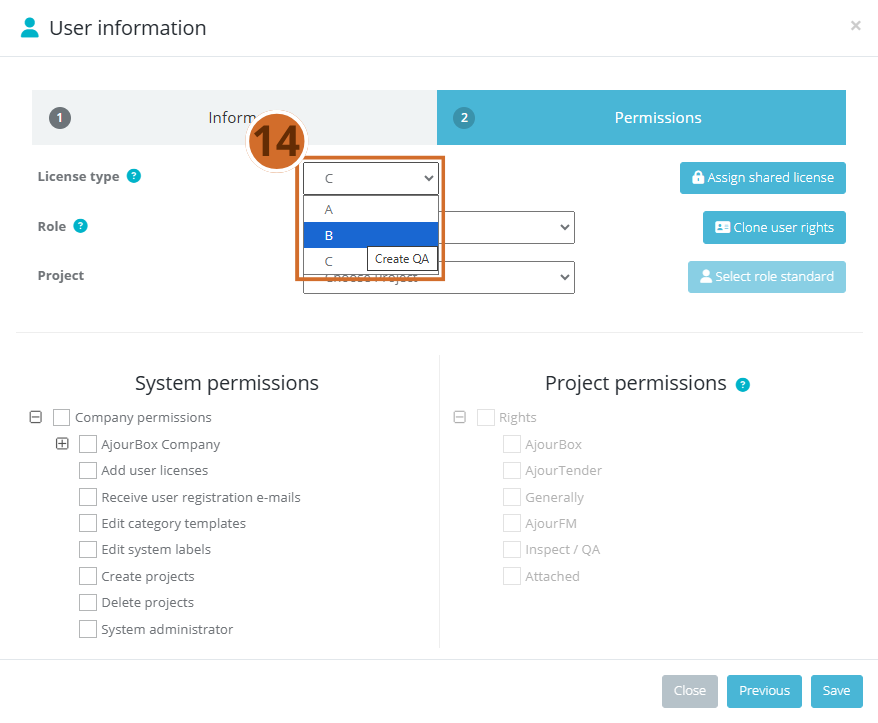
Step 14. Select the desired License type in the dropdown menu. → The license types reflect the available licenses in your subscription. It is not possible to select a license type if there are no free ones left.
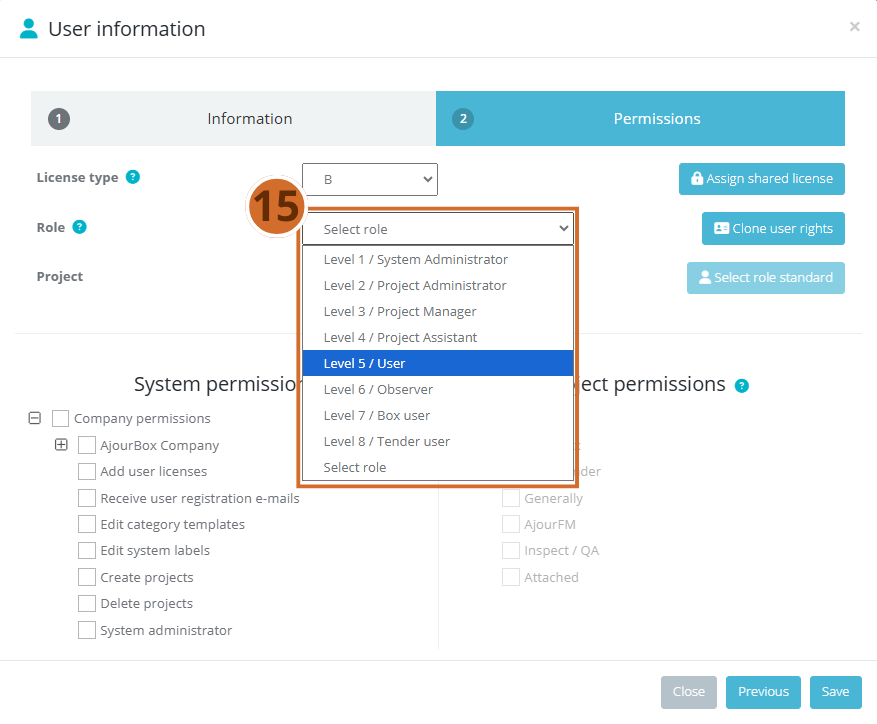
Step 15. Select the user’s Role in the dropdown menu. → The role is a predefined set of permissions. Important: Selecting a role in the dropdown menu does not automatically change the checkboxes. You must actively apply a role standard or adjust manually.
Step 16. Select the Project the user is to have access to, or select All projects.
Tip: Use Clone user rights to quickly copy the permission profile from an existing user with a similar function. Use Select role standard to apply the predefined permissions of the role standard.
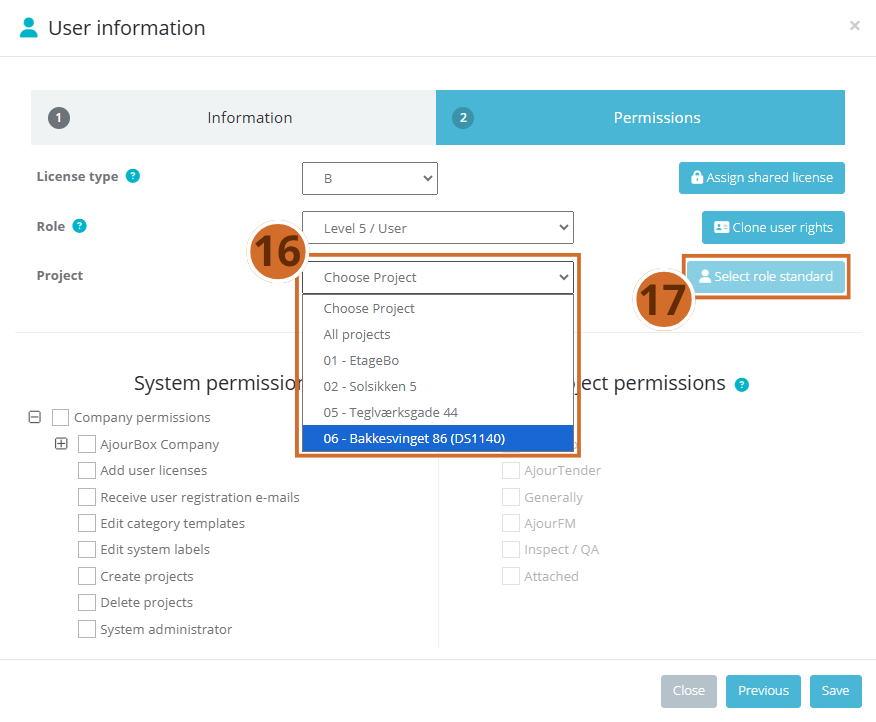
Step 17. Click the Select role standard button to assign the user the permissions of the selected role on the selected project.
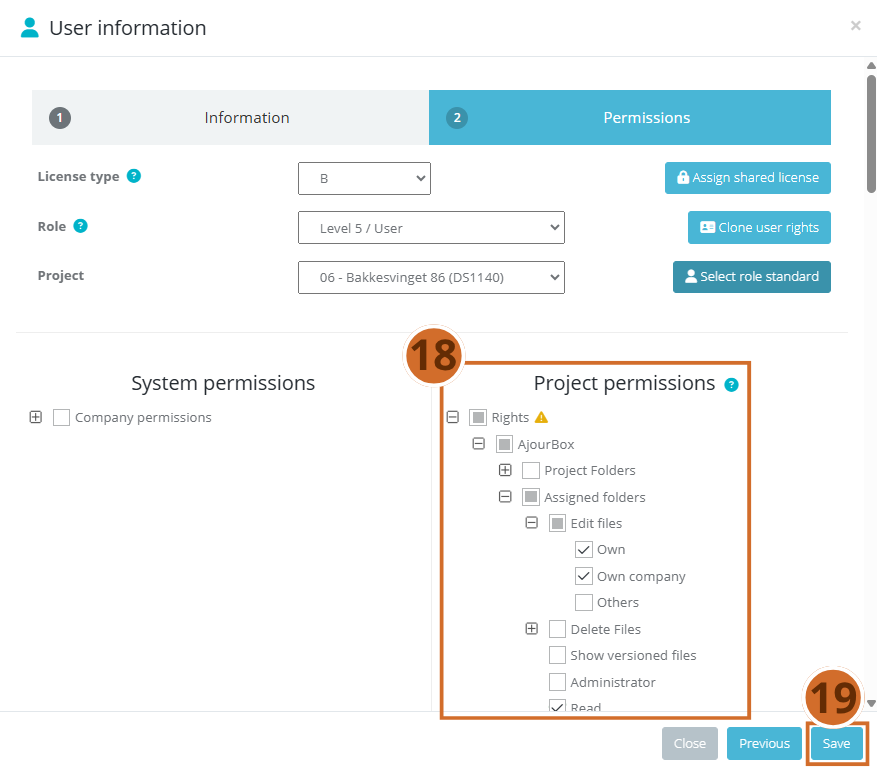
Step 18. Adjust the individual checkboxes under System permissions and Project permissions manually if needed. → You can expand subgroups by clicking + next to a category.
- Warning: Be careful when assigning permissions such as System administrator. These permissions give broad access to the entire system and should only be assigned to personnel who need them.
Step 19. Click Save to create the user. → The dialog closes and the new user appears in the user list. The system automatically sends an activation e-mail to the specified e-mail address with instructions for creating a password and a link to the system.
Remark: The new user receives an e-mail with username, activation link and a link to the system. The user must create their own password via the link.
Next steps #
- Edit the user — click the user’s row in the list to open and edit user data, change permissions or reset the password.
- Manage companies — go to the Companies tab in the administration panel to view and edit all associated companies.
- Review the license overview — click License Details for an overview of usage and available licenses, or buy more licenses via the Buy licenses button.