
CONTEXT #
This guide describes how to edit the information of an existing project in EG Ajour via Administration on the web. The function is located under the Projects tab in the administration module and lets you update the project’s master data, including name, address and status.
RELEVANCE #
You need this guide when information about a project has changed, or when data needs to be corrected or expanded after creation – for example, if the project name needs to be adjusted, or address details need to be added or corrected.
PREREQUISITES AND REQUIREMENTS #
- You must have a user account with administrator permissions (e.g. Level 1 / System Administrator)
- You must have the system permission Create projects (included by default in the role Level 1 / System Administrator)
- You must have access to the Administration panel in EG Ajour
- The project must already exist in the system
GUIDE (step by step) #
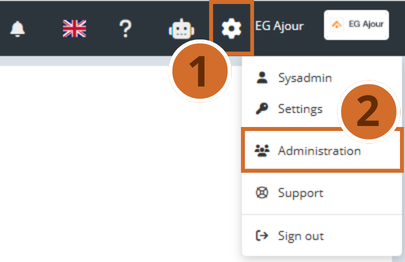
Step 1: Click the gear icon in the top menu
Step 2: Select Administration.
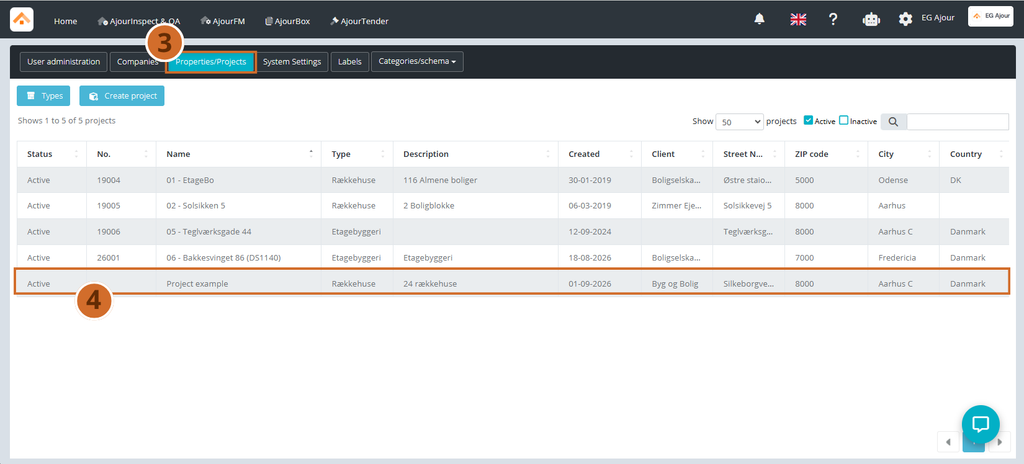
Step 3: Click the Projects tab. A list of existing projects is shown.
Step 4: In the list, click the project you want to edit. The “Project information” window opens with the project’s current information.
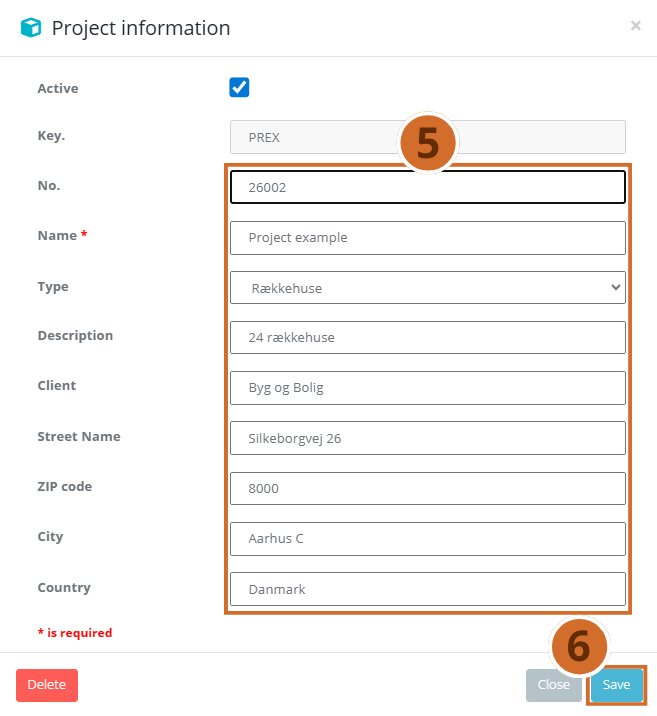
Step 5: Edit the relevant fields, e.g. Name, No., Type, Description, Client, Street Name, Zip Code, City or Country. In this case, we add a project number.
Note: The Key. field cannot be edited, as it is system-generated.
Tip: You can change the project’s status by clearing the checkmark in Active if the project should be set as inactive.
Step 6: Click Save to save your changes.
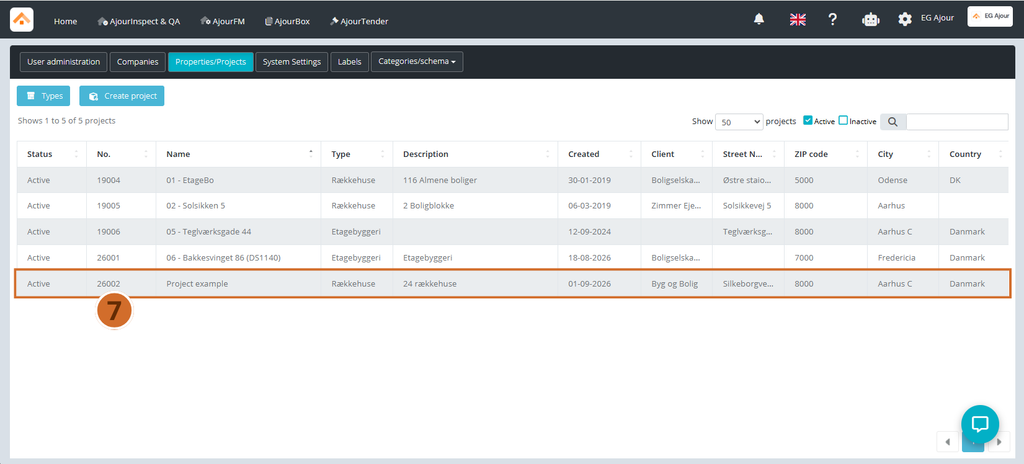
Step 7: The window closes automatically, and the updated information is now shown in the project list.
Note: If you want to remove the project permanently instead, you can click Delete at the bottom of the window instead of Save.
NEXT STEPS #
- See the guide Create project (Web) if a new project needs to be set up
- See the guide Categories/schema – Project Setup if the project groups need to be changed
- Review the project’s associated users