
Skip to content
EG Ajour Help

EG Ajour Help

  • GuidesExpand
    • Administration
    • Box
    • AjourInspect & QA
    • FM
    • Tender
    • App
    • Generally
  • English
  • Dansk
EG Ajour Help
EG Ajour Help

Administration

18
  • Access request
  • Administration module
  • Archive/Deactivate, activate or delete a project
  • Buy licenses (Add-on purchase)
  • Change the e-mail address of an existing user
  • Create a new user
  • Create project
  • Deactivate user
  • Edit project information
  • Explanation of license types
  • Give an existing user access to a project
  • Merge two companies
  • Remove a user from a project
  • Resend activation mail and New password
  • Role standards
  • Share your license with other Ajour systems
  • The My settings menu
  • User permissions in EG Ajour

App

28
  • Activating and using Tablet mode (App)
  • Download the EG Ajour app
  • EG Ajour app version App Store / Google Play
  • Log in to the EG Ajour app
  • Settings (App)
  • The app’s buttons or action options are not displayed correctly
  • The Menu function
  • App - Box
    • Download, Rename and Delete files (App)
    • Search for files (App)
    • Sort files (App)
    • Upload file or photo (App)
  • App - Inspect & QA
    • Add comment to a registration (App)
    • Add registration on registration drawing (app)
    • Add registration without registration drawing (app)
    • Camera – with and without “Enhanced camera”
    • Change receiver on a registration (App)
    • Change type on a registration (App)
    • Create blueprint (App)
    • Delete or hide registration (App)
    • Edit registration photo (app)
    • Filtering registrations
    • Forward registration (App)
    • Move registration
    • Search by registration number
    • Status on a registration (App)
  • Synchronization of EG Ajour app
    • Synchronization conflicts in the EG Ajour app
    • Synchronization error: Authentication error – check username and password (App)
    • Synchronization of the EG Ajour app

Box

14
  • BIMviewer
  • Blueprints on project
  • Create and manage folder templates
  • Download files from Box
  • Edit assignment
  • File management in AjourBox
  • File review
  • Folder log
  • Folder types in AjourBox
  • General information about AjourBox
  • Manage folders on the project
  • Revision and version control
  • Search functions in AjourBox
  • Upload of .zip file in AjourBox

FM

6
  • BE-card reports
  • Copy all BE-groups and cards from one project to another
  • Create new BE-card
  • Fill in a BE-card
  • Operating plan
  • Workflow with BE-cards

Generally

16
  • Allowed file types (current list) 
  • Create a new user in Ajour System 
  • Definition of registration types. 
  • EG Sasha in EG Ajour 
  • Email notifications 
  • Find your system name for EG Ajour 
  • Home / Dashboard 
  • Log in to an Ajour system (Web) 
  • Login page (Web) 
  • My settings
  • Overview of elements in a registration 
  • Reset Password 
  • Switch between multiple Ajour systems (web and app)
  • The modules (Web) 
  • Troubleshooting: You do not receive an email from EG Ajour 
  • Where can you get the best help or support?

Inspect & QA

30
  • Add comment to a registration
  • Bulk editing of registrations
  • Create registration
  • Deeplinking in AjourInspect & QA
  • Download registration images
  • Filtering, sorting and grouping
  • Print registration drawing
  • Print report
  • Registration statuses in EG Ajour Inspect & QA – what do they mean?
  • Registration types / Note types
  • Report generator
  • Status on registrations
  • Categories/shema
    • Categories/schema: Calculated scope
    • Categories/schema: Concept explanation
    • Categories/schema: Import and export control schema
    • Categories/schema: Print
    • Categories/schema: Project Setup
    • Categories/schema: System Setup
    • Copy content from a project group to another project
  • Manage a registration
    • Change deadline on a registration
    • Change groups on a registration
    • Change project level on a registration
    • Change receiver on a registration
    • Change registration type
    • Copy registration
    • Edit registration
    • Forward registration
    • Hide or restore registration
    • Labels
    • Show registration log on a registration

Tender

22
  • Cancel tender
  • Change offer responsible / bidder on a contract
  • Complete selection
  • Create and manage a tender in AjourTender
  • Create and upload an ESPD (Tender administrator)
  • Download tender materials
  • Download, complete and upload ESPD (Bidder)
  • Edit a tender
  • Filter and sort tenders in AjourTender
  • Invitation to a tender
  • Inviting users to a tender
  • Log (Tender log)
  • Overview and Filter
  • Participate in a public tender
  • Questions / Answers
  • Reopening of tenders
  • Roles in a tender
  • Send Result List
  • Status of a tender
  • Upload tender/PQ
  • Correction sheet
    • Send out correction sheet (Tender administrator)
    • View correction sheets as a bidder
View Categories
  • Home
  • Docs
  • Administration
  • Buy licenses (Add-on purchase)

Buy licenses (Add-on purchase)

1 min read

0:00 / 2:42
  • View as Markdown Open this page as plain Markdown (opens in a new tab)
  • Open in ChatGPT Ask questions about this page (opens in a new tab)
  • Open in Claude Ask questions about this page (opens in a new tab)
  • Open in Google AI Studio Ask questions about this page (Google account required) (opens in a new tab)
CONTEXT #

This guide describes how to buy additional A or B licenses in EG Ajour via the Administration module on the web. The function is found under User administration and lets you expand the number of available licenses for the company’s users.

RELEVANCE #

You need this guide when your company has used all available licenses, or when you need to create more users than there is room for under the current license agreements. By buying licenses, you can ensure that new or existing users can be assigned the necessary access.

PREREQUISITES AND REQUIREMENTS #
  • You must have administrator permissions in EG Ajour (System administrator level)
  • You must have the permission Add user licenses under System permissions assigned to your user. This permission gives access to buying and cancelling licenses in the administration module
  • You must have access to the Administration module
  • Be aware that purchased licenses are invoiced to the company
GUIDE (step by step) #

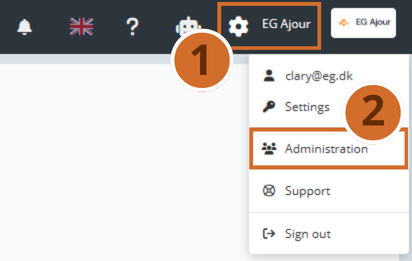
Step 1: Click the gear icon in the top right corner of the screen. A menu opens.

Step 2: Select Administration in the menu. You now go to the administration overview, which by default opens on the User administration tab.
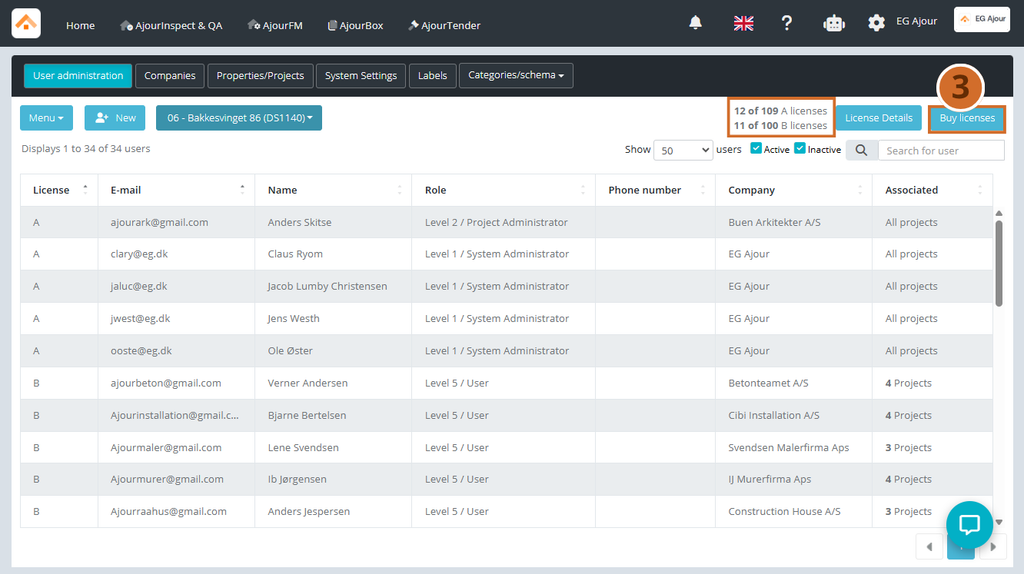
Step 3: In the top right corner, you can see how many A and B licenses your company currently has available and how many are in use (e.g. “[number] of [number] A licenses”). Click Buy licenses to buy more.

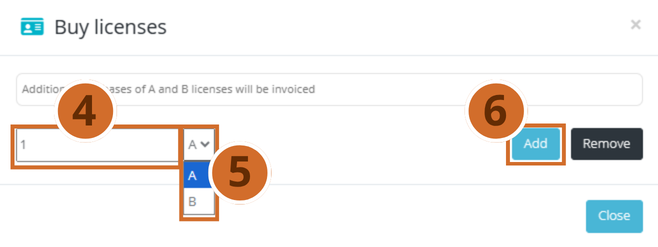
Please note: A text is shown in the window, noting that purchases of A and B licenses will be invoiced.
Step 4: Enter the desired number of licenses you want to buy in the field on the left.

Step 5: Select the license type in the dropdown field next to the quantity field – choose between A or B, depending on which type of license you want to buy.

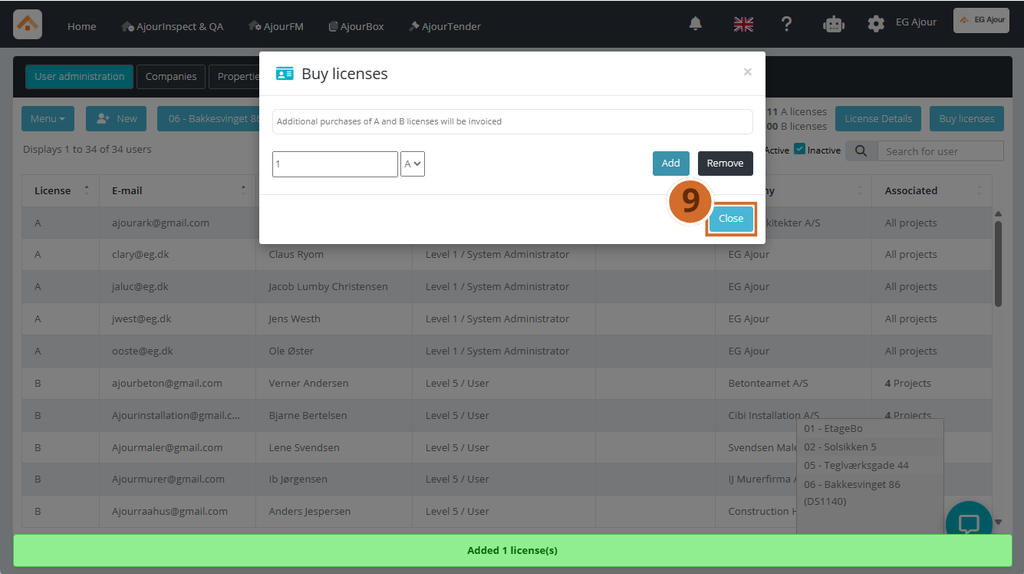
Step 6: Click Add to complete the purchase.
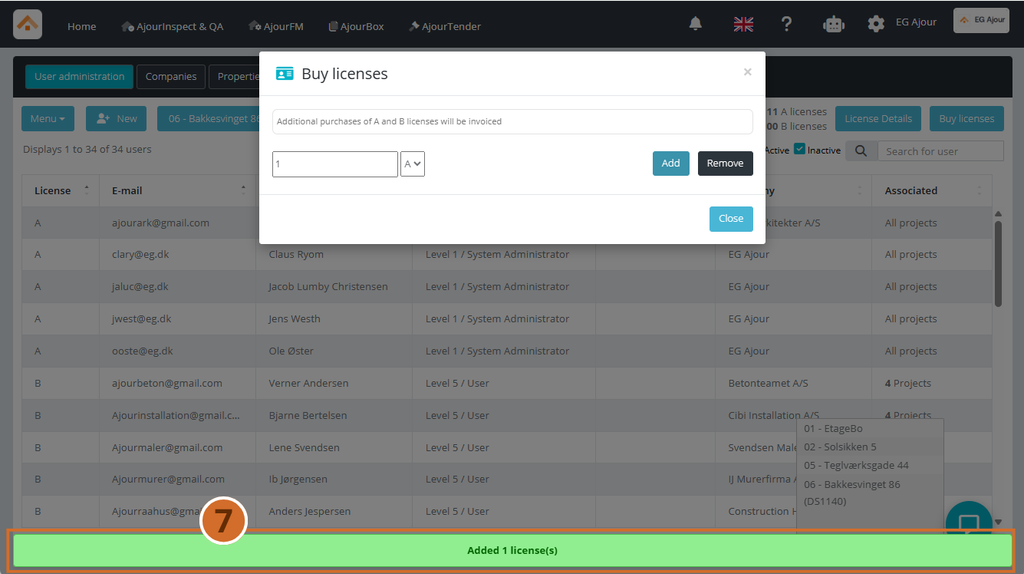
Step 7: A green confirmation message (“Added [number] license(s)”) is shown at the bottom of the screen, and the license count in the top right is updated to reflect the new total number of licenses.
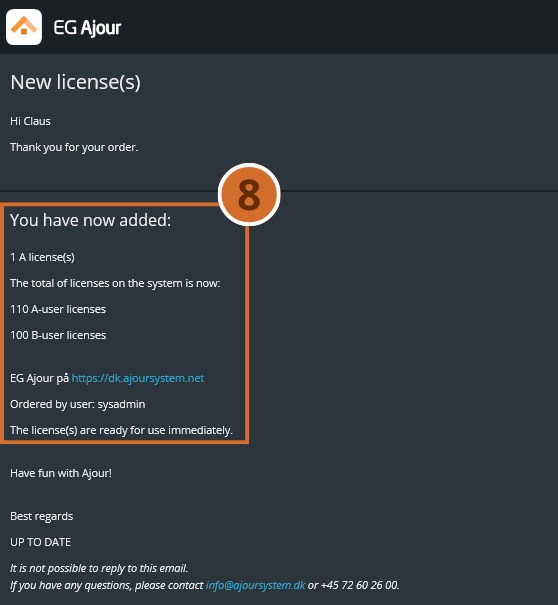
Step 8: A confirmation e-mail is sent automatically to the user who made the purchase. The e-mail confirms how many licenses have been added, and the total number of A and B licenses now available on the system.

Please note: The license(s) are ready for use immediately – you do not need to do anything further after the purchase is completed.
Step 9: Click Close to close the window when you are done.

Important: If you need to buy several license types (both A and B), repeat steps 4-6 for each license type, as only one type can be selected at a time.
NEXT STEPS #
  • Create new users and assign them a license under the User administration tab
  • View license details via the License Details button for an overview of the license distribution
  • Contact support if there are discrepancies between the ordered and the displayed number of licenses

What are your Feelings

  • Happy
  • Normal
  • Sad
Archive/Deactivate, activate or delete a projectChange the e-mail address of an existing user

Powered by BetterDocs

Table of Contents
  • CONTEXT
  • RELEVANCE
  • PREREQUISITES AND REQUIREMENTS
  • GUIDE (step by step)
  • NEXT STEPS

© 2026 EG Ajour Help

  • Guides
    • Administration
    • Box
    • AjourInspect & QA
    • FM
    • Tender
    • App
    • Generally
  • English
  • Dansk