
Context #
This guide describes how, as a system administrator, you give an existing user access to a specific project in EG Ajour. This is done via the user administration module, where you open the user’s permissions and change the project assignment and the associated project permissions.
Relevance #
You need this guide when:
- An existing user must be added to a new project they have not previously had access to
- A user’s project access must be changed from one project to another
- A user must have access to all projects instead of a single one
Prerequisites and requirements #
Before you follow the guide, the following must be in place:
- You are logged in to EG Ajour
- Your user has system or project administrator permissions or equivalent access to user administration
- The project you want to give the user access to has already been created in the system
- You know the user whose access is to be changed
Guide #
Part 1 – Open the administration panel #
Step 1. Click the gear icon at the top right of the navigation bar. →
- A dropdown menu appears with options for your profile and system settings.
Step 2. Select Administration in the dropdown menu. →
- You are taken to the administration panel. The User administration tab is active by default, and the list of existing users is shown.
Part 2 – Open the user’s permissions #
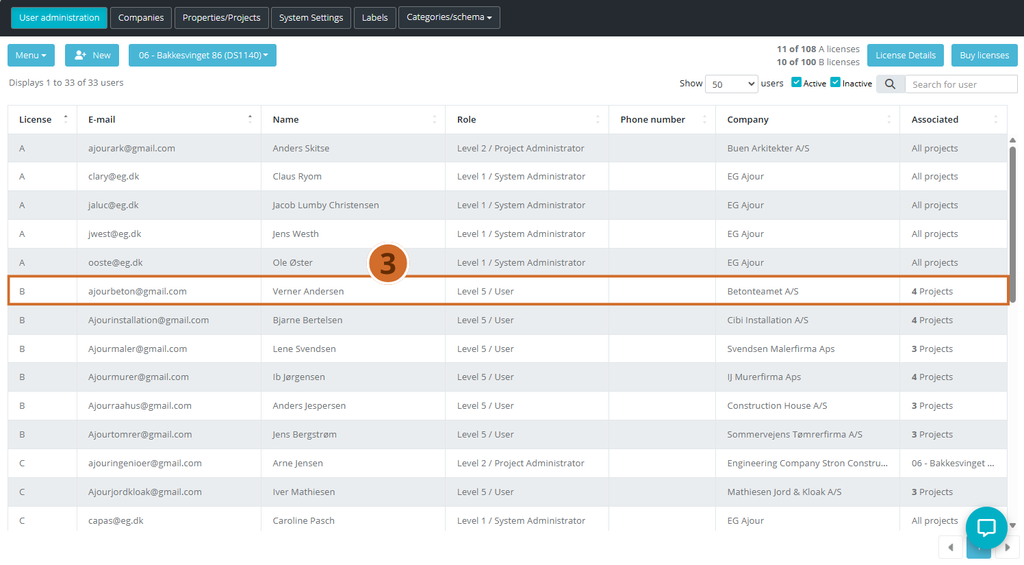
Step 3. Find the desired user in the list and click the user’s row. →
- The User information dialog opens on the Information tab, which shows the user’s master data.
Tip: Use the search field at the top right of the user list to find the user quickly by searching for name or e-mail.
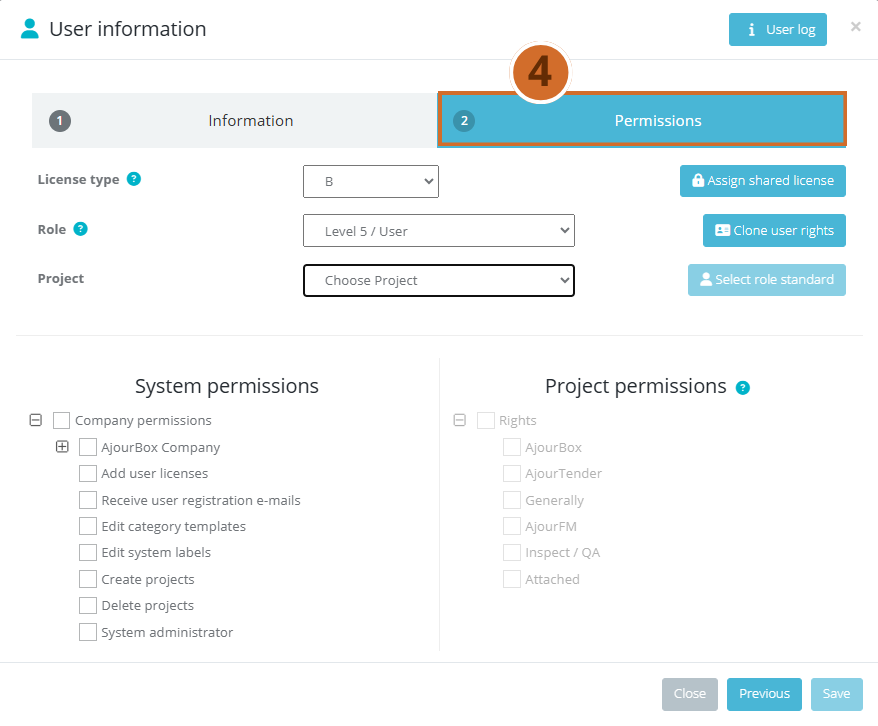
Step 4. Click the Permissions tab at the top of the dialog. → The Permissions tab is activated and shows the fields License type, Role and Project, as well as the sections System permissions and Project permissions.
Part 3 – Change the project assignment #
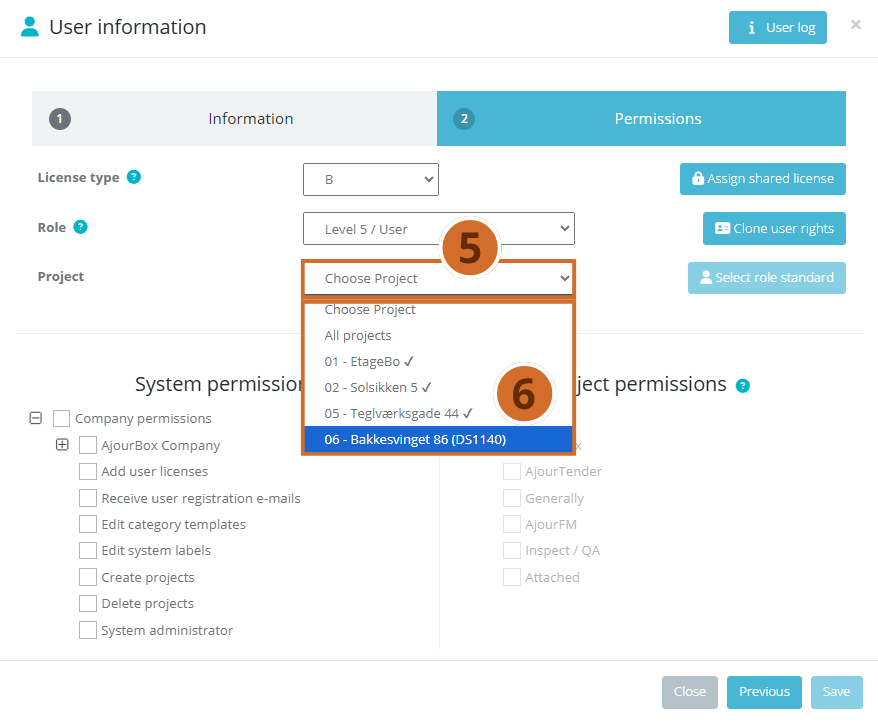
Step 5. Click the Project dropdown to see the list of available projects. → A dropdown appears with all available projects as well as the option All projects.
Note: You can only assign permissions to projects that you have access to yourself. Projects you do not have permissions for will not appear in the list.
Step 6. Select the project the user is to have access to. → The Project permissions section is updated and shows the permissions that apply to the selected project.
Note: If you select All projects, the user gets access to all projects in the system. If you select a specific project, access is limited to that project.
Part 4 – Assign project permissions and save #
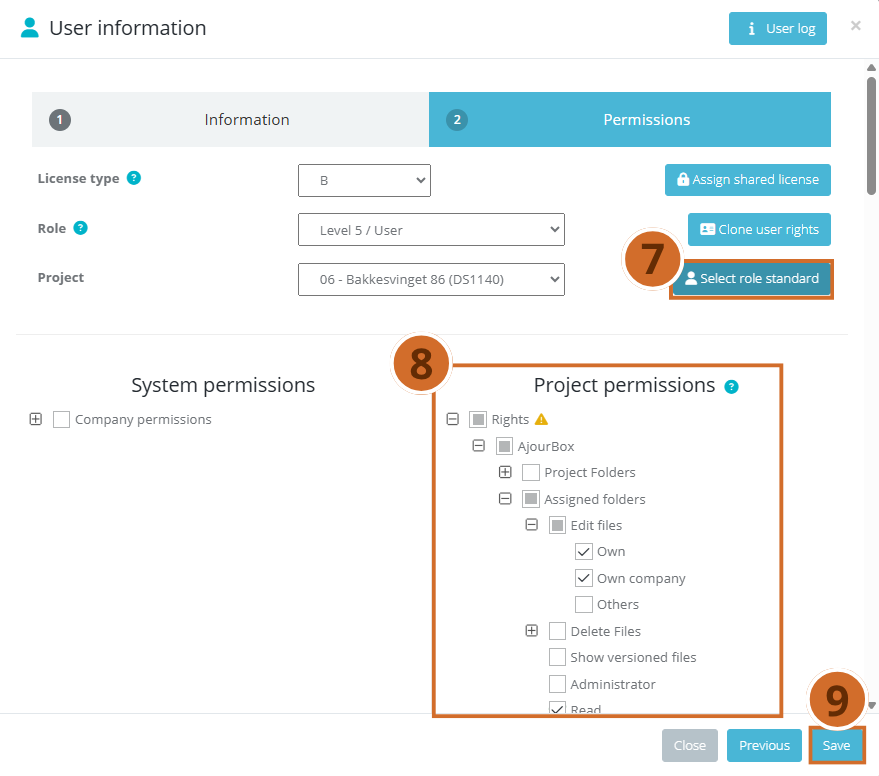
Step 7. Click Select role standard to load the predefined set of permissions that corresponds to the user’s current role. → The Project permissions section is updated automatically with the default permissions for the selected role. This is the recommended approach, as it ensures a consistent and correct setup.
Important: Always use Select role standard as your starting point. Manual adjustment of individual permissions should only be done if there is a specific need to deviate from the standard.
Step 8. If necessary, adjust individual checkboxes manually under Project permissions. → You can expand subgroups by clicking + next to a category to see and edit detailed permissions.
Tip: Use Clone user rights as an alternative to the role standard if you want to copy the permission profile from an existing user with a similar function.
Step 9. Click Save to save the changes. → The dialog closes and you return to the user list. A green confirmation bar appears at the bottom of the screen with the text Userpermissions changed. The Associated column for the user is updated to reflect the new project.
Next steps #
- Verify the access — ask the user to log in and check that the correct project is available in the project list.
- Adjust system permissions — if the user must also have changed system permissions, these can be edited in the System permissions section on the same tab.
- Create a new user — if a person does not yet have a user account, follow the guide Create a new user.