
CONTEXT #
This guide describes how to buy additional A or B licenses in EG Ajour via the Administration module on the web. The function is found under User administration and lets you expand the number of available licenses for the company’s users.
RELEVANCE #
You need this guide when your company has used all available licenses, or when you need to create more users than there is room for under the current license agreements. By buying licenses, you can ensure that new or existing users can be assigned the necessary access.
PREREQUISITES AND REQUIREMENTS #
- You must have administrator permissions in EG Ajour (System administrator level)
- You must have the permission Add user licenses under System permissions assigned to your user. This permission gives access to buying and cancelling licenses in the administration module
- You must have access to the Administration module
- Be aware that purchased licenses are invoiced to the company
GUIDE (step by step) #
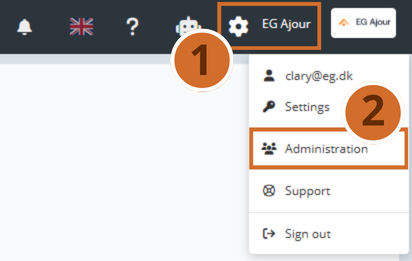
Step 1: Click the gear icon in the top right corner of the screen. A menu opens.
Step 2: Select Administration in the menu. You now go to the administration overview, which by default opens on the User administration tab.
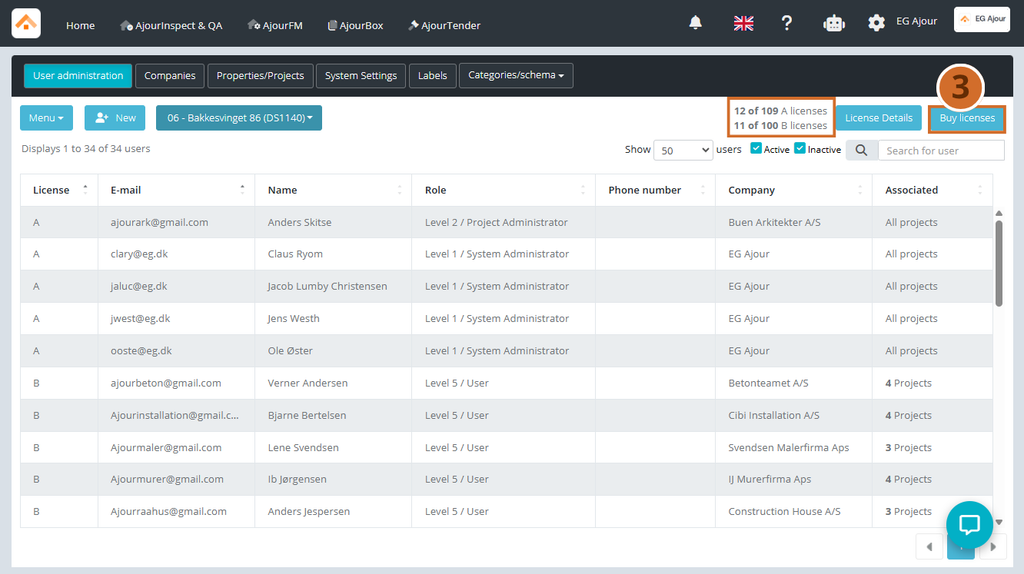
Step 3: In the top right corner, you can see how many A and B licenses your company currently has available and how many are in use (e.g. “[number] of [number] A licenses”). Click Buy licenses to buy more.
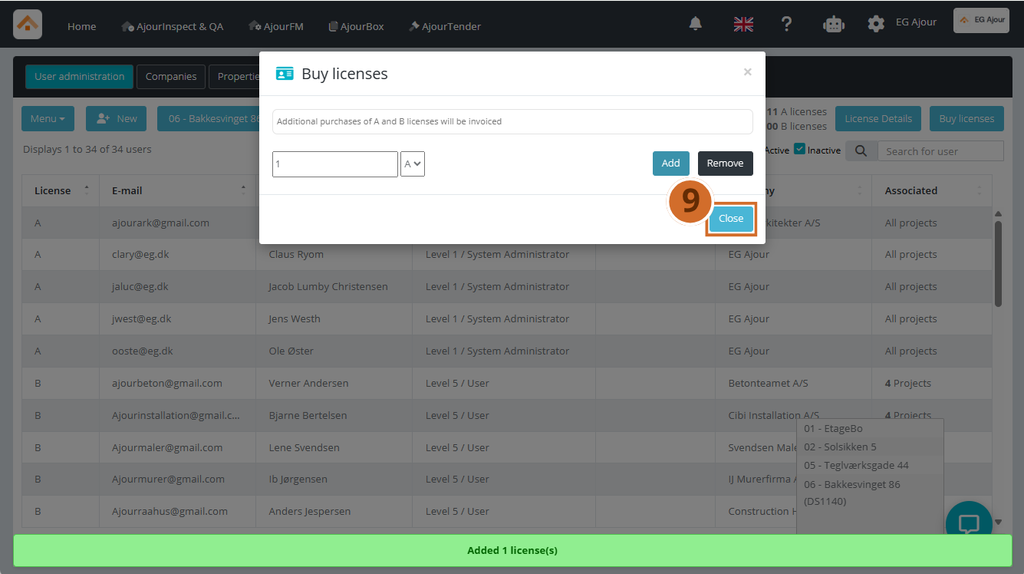
Please note: A text is shown in the window, noting that purchases of A and B licenses will be invoiced.
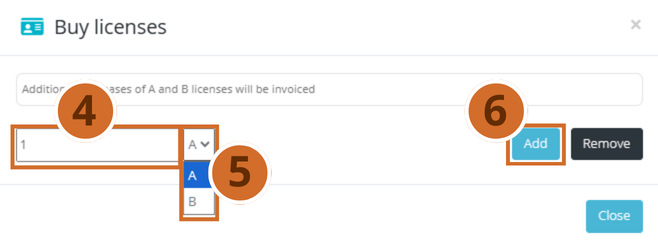
Step 4: Enter the desired number of licenses you want to buy in the field on the left.
Step 5: Select the license type in the dropdown field next to the quantity field – choose between A or B, depending on which type of license you want to buy.
Step 6: Click Add to complete the purchase.
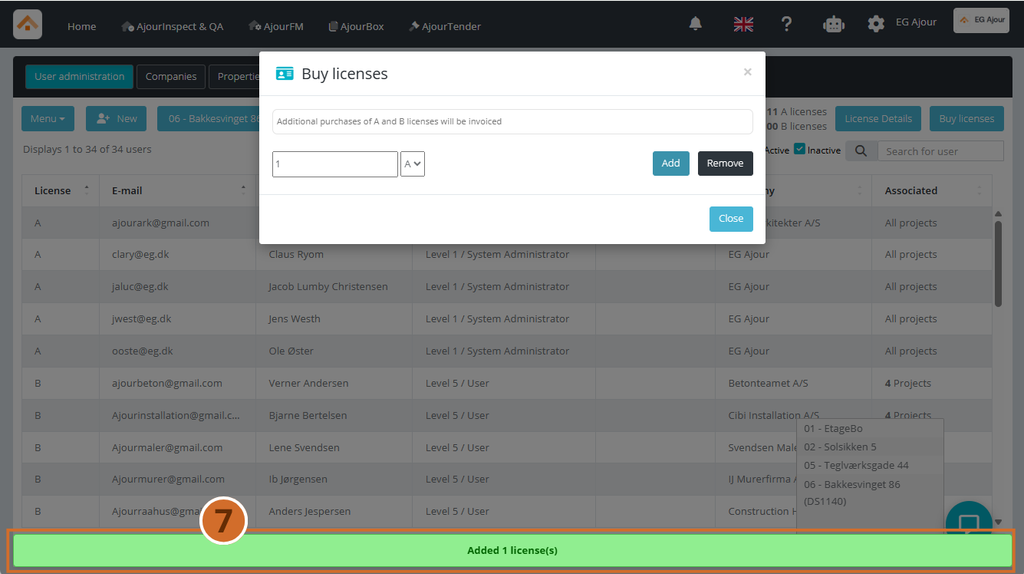
Step 7: A green confirmation message (“Added [number] license(s)”) is shown at the bottom of the screen, and the license count in the top right is updated to reflect the new total number of licenses.
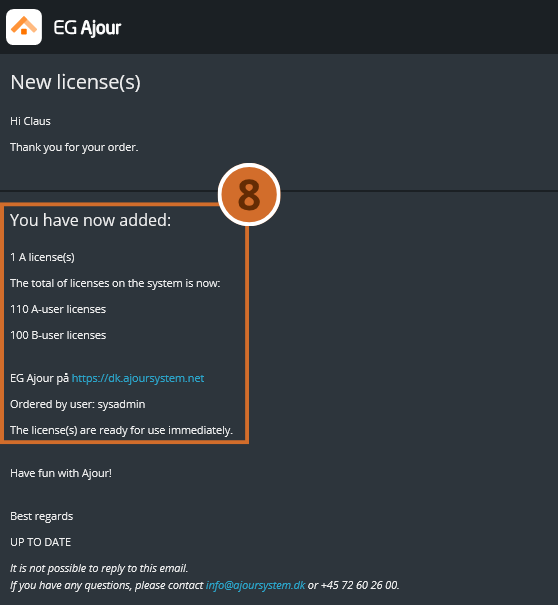
Step 8: A confirmation e-mail is sent automatically to the user who made the purchase. The e-mail confirms how many licenses have been added, and the total number of A and B licenses now available on the system.
Please note: The license(s) are ready for use immediately – you do not need to do anything further after the purchase is completed.
Step 9: Click Close to close the window when you are done.
Important: If you need to buy several license types (both A and B), repeat steps 4-6 for each license type, as only one type can be selected at a time.
NEXT STEPS #
- Create new users and assign them a license under the User administration tab
- View license details via the License Details button for an overview of the license distribution
- Contact support if there are discrepancies between the ordered and the displayed number of licenses