
Context #
When a user is created in an Ajour system, a welcome e-mail with a link to activate the user and create a password is sent automatically. In user administration, an administrator can resend this activation e-mail if the user has not received it, and can also send a new e-mail so the user can create a new password.
Relevance #
This guide is relevant if a created user has not received their welcome e-mail with the activation link, or if a user needs to be sent a new password, e.g. because the original password has been forgotten or was never created.
Prerequisites and requirements #
- You must have the role System administrator or Project administrator to have access to user administration.
- The user must have been created in the system.
- The user must not have activated their user yet.
- The user must have access to the registered e-mail account, as the e-mail is sent there.
Please note: The “Resend activation mail” function disappears as soon as the user has activated their user. A user only needs to be activated once.
Guide #
Part 1 – Resend activation mail #
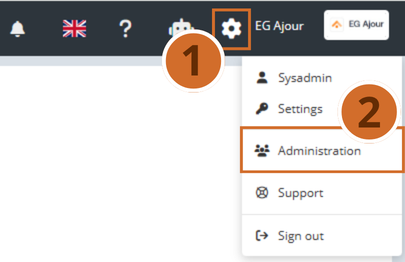
Step 1. Click the gear icon in the top right of the navigation menu.
Step 2. Select “Administration” in the menu.
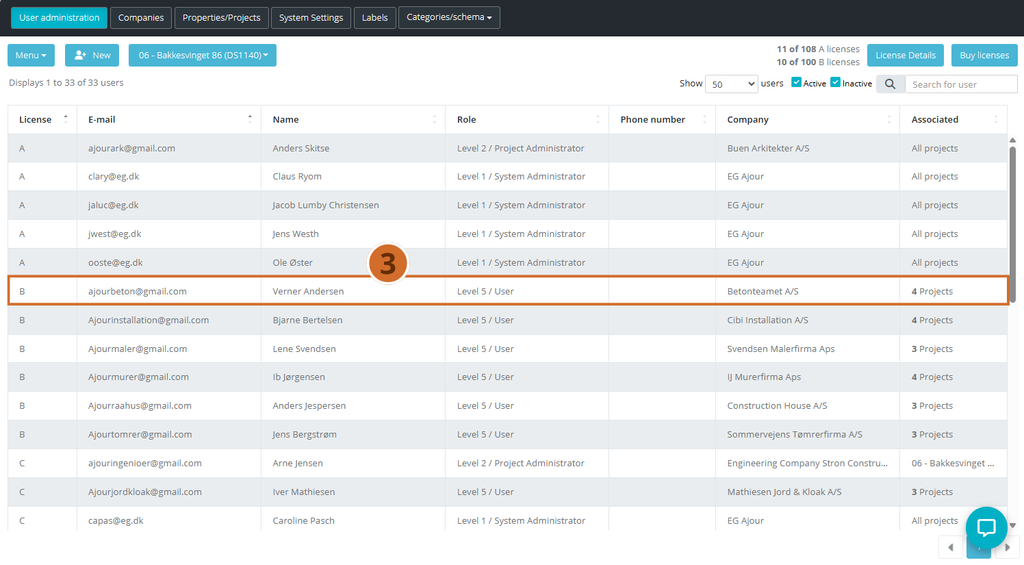
Step 3. Find and select the relevant user in the user list.
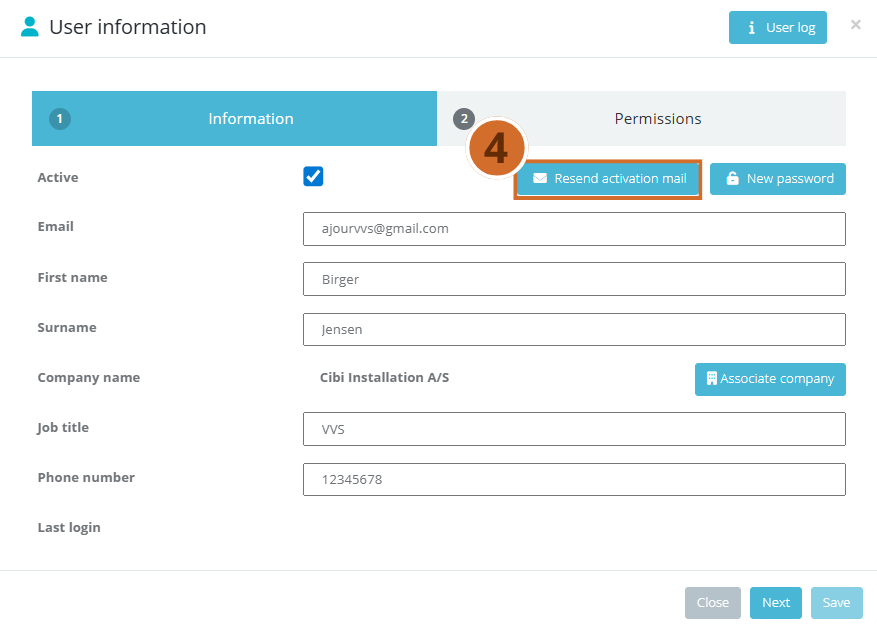
Step 4. Click “Resend activation mail” in the user’s data window.
Please note: The user then receives a new welcome e-mail with a link to activate the user and create a password.
Part 2 – Send new password #
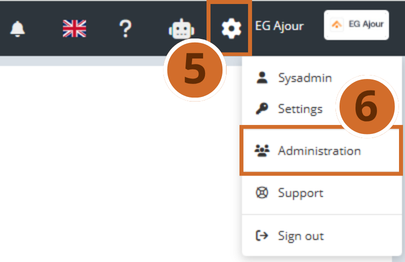
Step 5. Click the gear icon in the top right of the navigation menu.
Step 6. Select “Administration” in the menu.
Step 7. Find and select the relevant user in the user list.
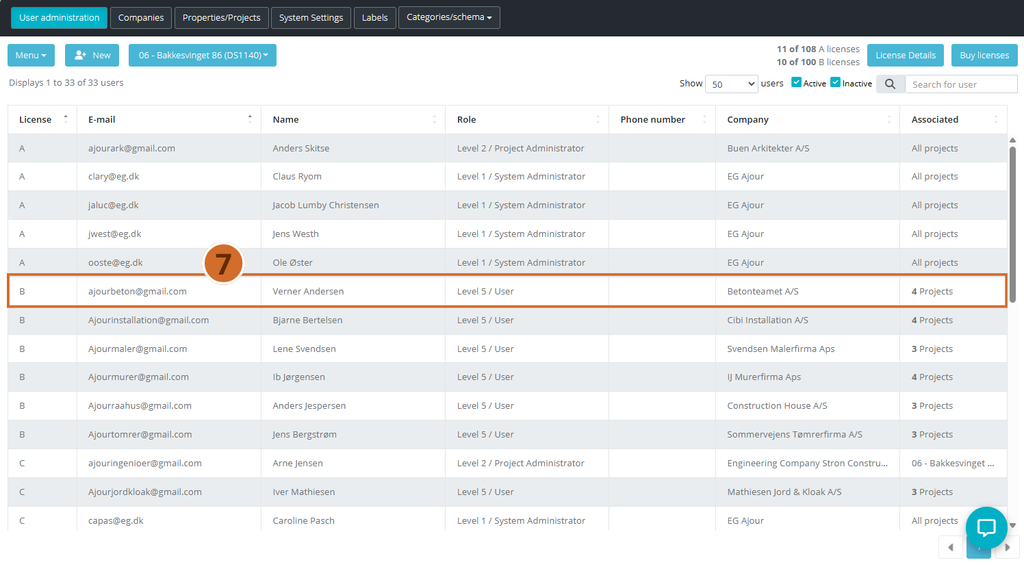
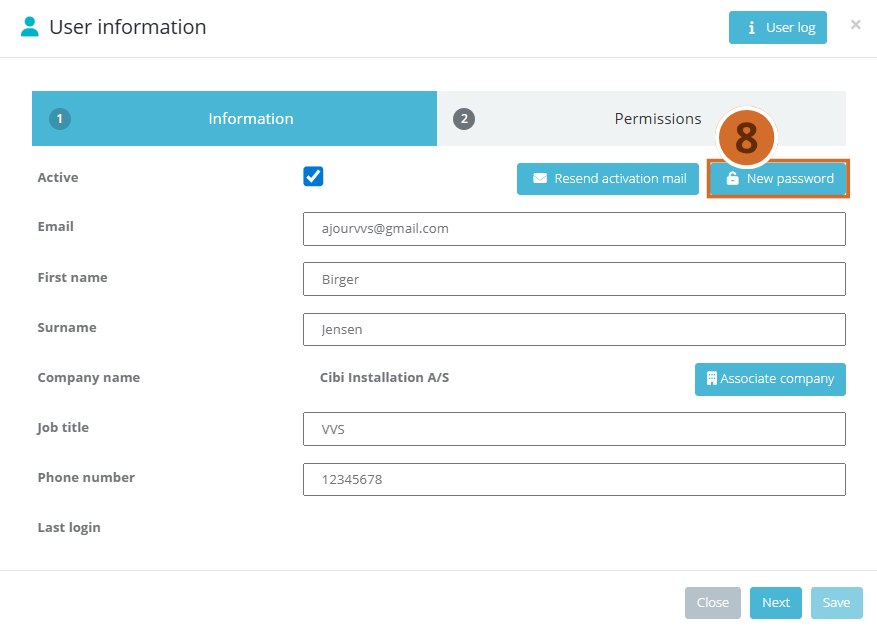
Step 8. Click “New password” in the user’s data window.
Please note: The user then receives an e-mail with a link. When you click the link, a page opens where the user can enter and confirm a new password. Important: The new password must be at least 8 characters.
Next steps #
- Ask the user to confirm that the activation e-mail or the new password e-mail has been received and that the link works.
- Check the user’s e-mail address in the user data if the e-mail is still not received, as an incorrectly registered e-mail may be the cause.
- Review the user’s permissions under the “Permissions” tab once the user has been activated, to ensure correct access to projects and modules.