
Context #
The Administration module is the system’s central management module, from which administrators and privileged users can manage users, companies, projects and system configuration. The module is accessed via the gear icon in the top right corner and contains up to six tabs depending on the user’s permissions.
Relevance #
This guide is relevant when you need to:
- Create or edit users and access permissions
- Manage companies in the system
- Create or change projects
- Adjust general system settings and the logo
- Manage labels for categorization
- Configure categories and schemas for control plans
Prerequisites and requirements #
Before you follow this guide, the following must be in place:
- You are logged in to the system
- You have administrator permissions or have been assigned a role with access to the Administration module
- Some tabs (System Settings, Labels, Categories/schema) require special permissions — contact your system administrator if they are not visible
Guide (step by step) #
Open the Administration module #
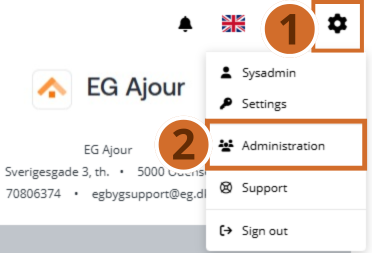
Step 1. – Click the gear icon in the top right of the page to open the user menu.
Step 2. – Click the menu item Administration in the drop-down menu that appears. You are now taken to the start page of the Administration module.
The gear icon is always visible in the top navigation bar, regardless of which page you are on.
User administration #
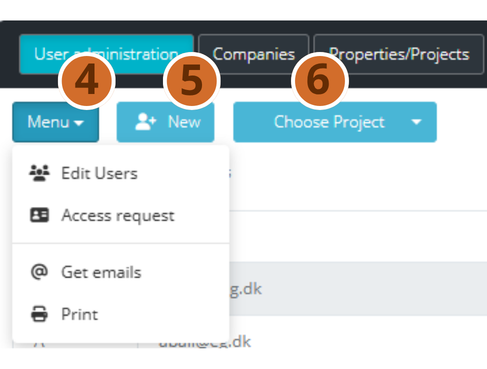
Step 3. – Click the “User administration” tab to view and manage the system’s users.

Step 4. – Click the “Menu” button to access the following actions:
- Edit Users — edit existing users’ details and permissions
- Access request — view and handle incoming access requests
- Get emails — copy all users’ e-mail addresses
- Print — download a user list with all users’ details
Step 5. – Click the “New” button to create a new user in the system. Fill in the required fields in the form that appears.
Step 6. – Click the “Select project” button to filter the user list so it only shows users linked to a specific project.
You can sort the list by clicking the arrow buttons next to the column headings — the list is shown in either ascending or descending order.
Companies #
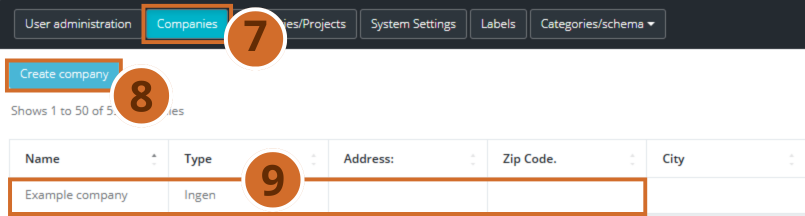
Step 7. – Click the Companies tab to see all registered companies.
Step 8. – Click the “Create company” button to add a new company to the list. Fill in name, type, address and other relevant details in the form that opens.
Step 9. – Click an existing company in the list to open and edit its details. Save your changes when you are done.
Projects #
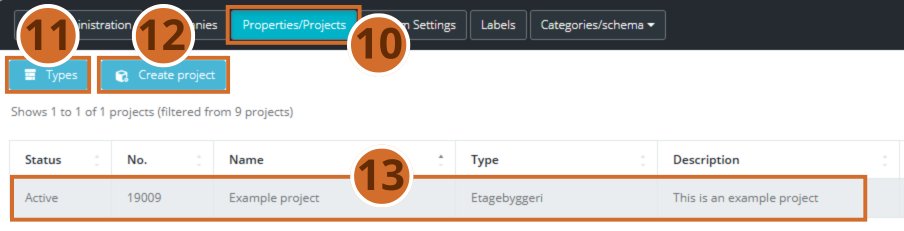
Step 10. – Click the “Projects” tab to view and manage the system’s projects.
Step 11. – Click the “Types” button to filter the project list so it only shows projects of a specific type.
Step 12. – Click the “Create project” button to add a new project. Fill in status, number, name, type and description in the form.
Step 13. – Click an existing project in the list to open and edit its details.
You can sort projects by clicking the arrow buttons next to the columns Status, No., Name, Type and Description.
System Settings #
This tab is only available to users with the relevant permissions.
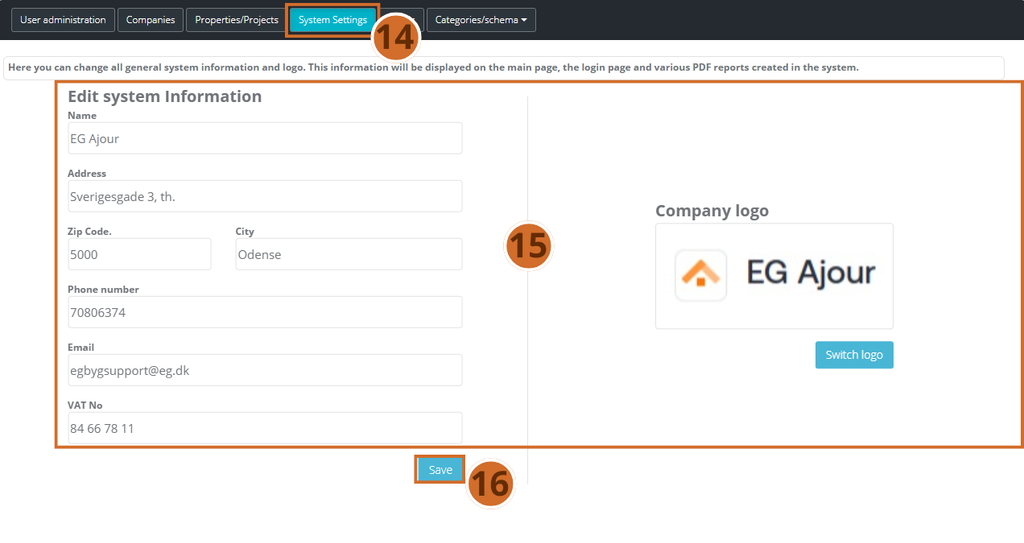
Step 14. – Click the “System Settings” tab to view and edit the general system information.
Step 15. – Fill in or update the desired fields in the form:
- Name — the display name of the system
- Address, zip code, city — the organization’s address
- Phone number and e-mail — contact details
- VAT No — organization number
- Company logo — click the “Switch logo” button to upload a new logo
The information is shown on the front page, the login page and in PDF reports generated by the system.
Step 16. – Click the “Save” button to save all changes to the system settings.
Changes to system settings take effect immediately and are visible to all users in the system.
Labels #
This tab is only available to users with the relevant permissions.
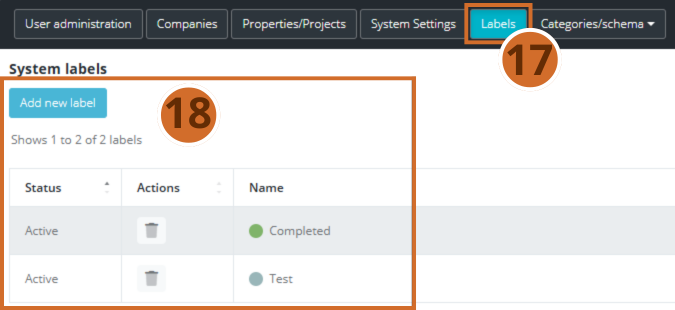
Step 17. – Click the “Labels” tab to manage the system’s labels. Labels are used to categorize registrations across projects in a structured way.
Step 18. – On the Labels page you can:
- See an overview of existing labels with status, actions and name
- Click the “Add new label” button to create a new label
Labels can be used for consistent categorization across all projects in the system. Consider a naming convention that is understandable to all users.
Delete existing labels by clicking the delete icon in the Actions column
Categories/schema #
This tab is only available to users with the relevant permissions.
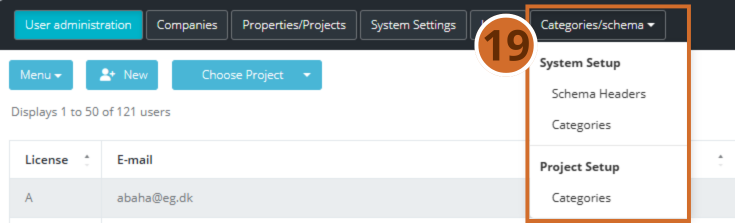
Step 19. – Click the “Categories/schema” tab to open a drop-down menu.
Under “System setup” you will find:
- Schema Headers — edit the headings used in the system’s schemas
- Categories — manage the categories that apply across the entire system
Under “Project setup” you can:
- Edit the categories that are specific to individual projects and used in control plans.
Changes to categories and schemas can affect existing control plans and registrations. Only make changes if you are sure of the consequences.
Next steps #
Step 1. – Assign users to projects — go to User administration and use the Select project filter to assign and check users’ project access.
Step 2. – Configure control plans — use Categories/schema to set up the schemas and categories to be used in the projects’ control plans.
Step 3. – Create and manage labels — define the labels to be used for categorizing registrations across the projects, and communicate them to relevant users.