
Settings #
This article explains where to find the user settings and how to change your user data, password and e-mail settings.
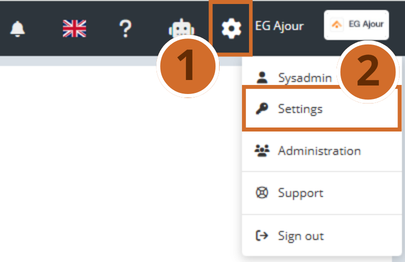
Step 1 – Open the user settings menu by clicking the gear symbol in the top right corner
Step 2 – Select “Settings” in the dropdown menu.
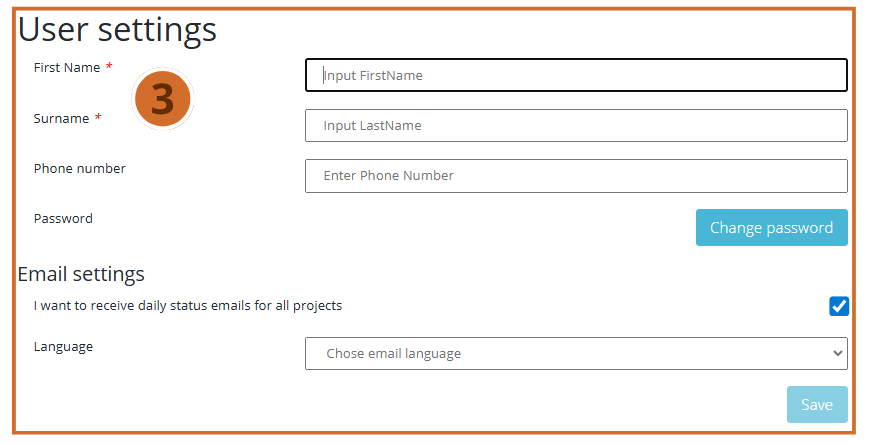
Step 3 – On this page, you can edit your personal data, your password and e-mail settings. Each section is described in detail below.
Personal data #
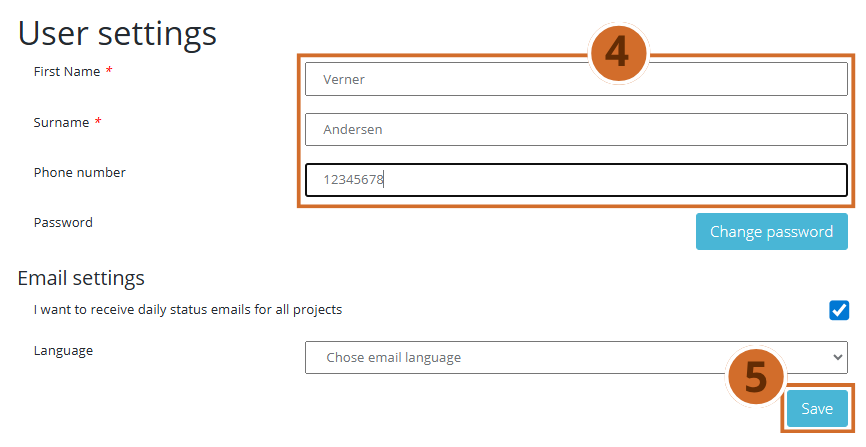
Step 4 – Here you can edit your personal data, including your first name, your last name and your phone number.
Step 5 – Click the “Save” button to save your changes.
Change password #
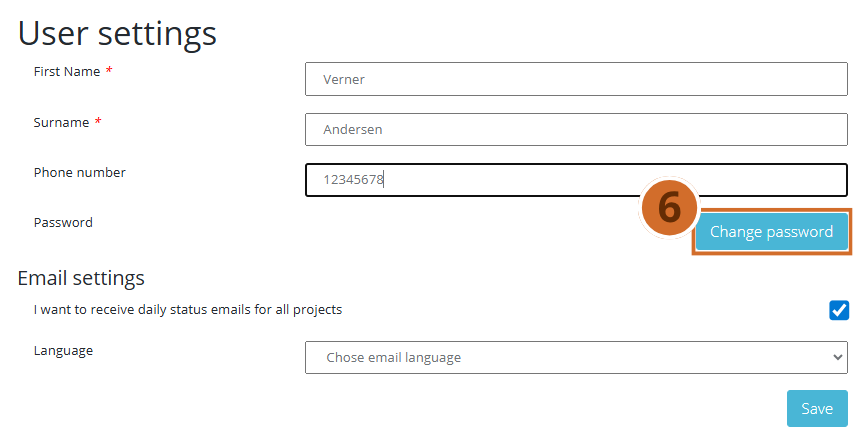
Step 6 – To change your password, click the “Change password” button. A new pop-up window appears.
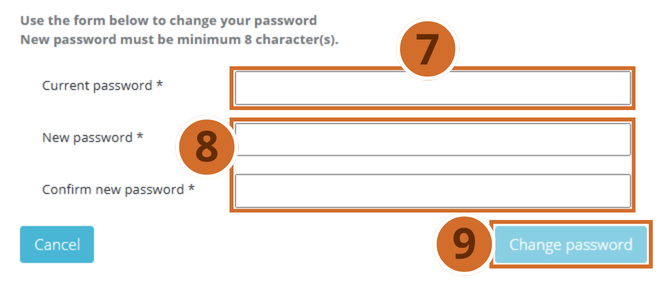
Step 7 – To change your password, first enter your old password.
Step 8 – Then choose a new password and repeat it in the last text field to confirm it. The new password must contain at least one character.
Step 9 – Click “Change password” to save your changes.
Daily e-mail settings #
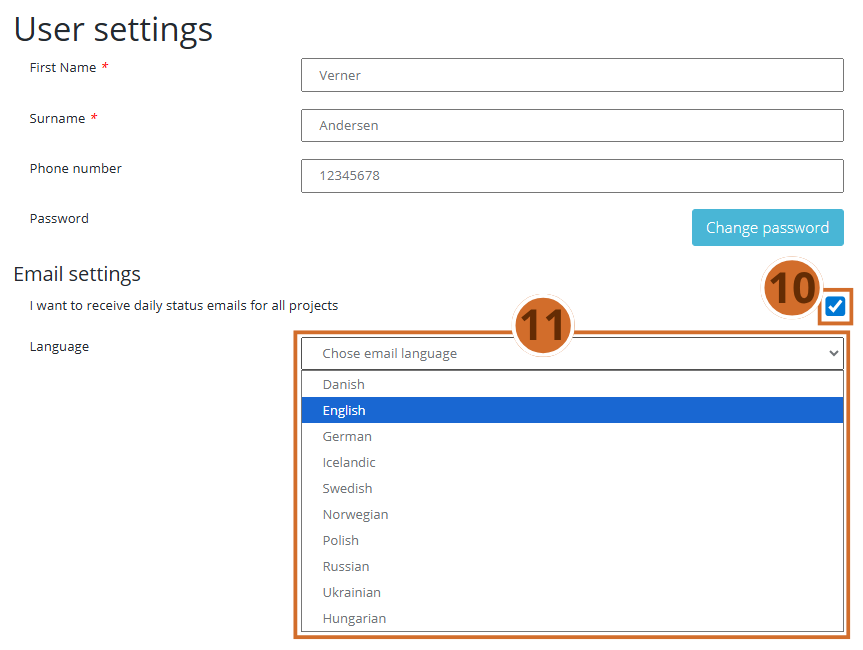
Step 10 – Here you can change your e-mail settings.
Select the checkbox if you want to receive daily updates by e-mail. Leave it empty if you do not want to receive e-mail updates.
Step 11 – You can also change the language of the e-mail updates. Select the desired language in the dropdown menu.
Remember to click the “Save” button to save all your changes.
Turn off notifications on a specific project
If you want to turn off notifications on a specific project, contact your system administrator and ask them to remove daily updates on that specific project.